Once plans are selling, Plans and payments shows who has which plan and every payment, and each member has a Billing screen of their own.
Where to find it:
Open Money, then Plans and payments, and scroll to Members on plans and Payments.
Members on plans:
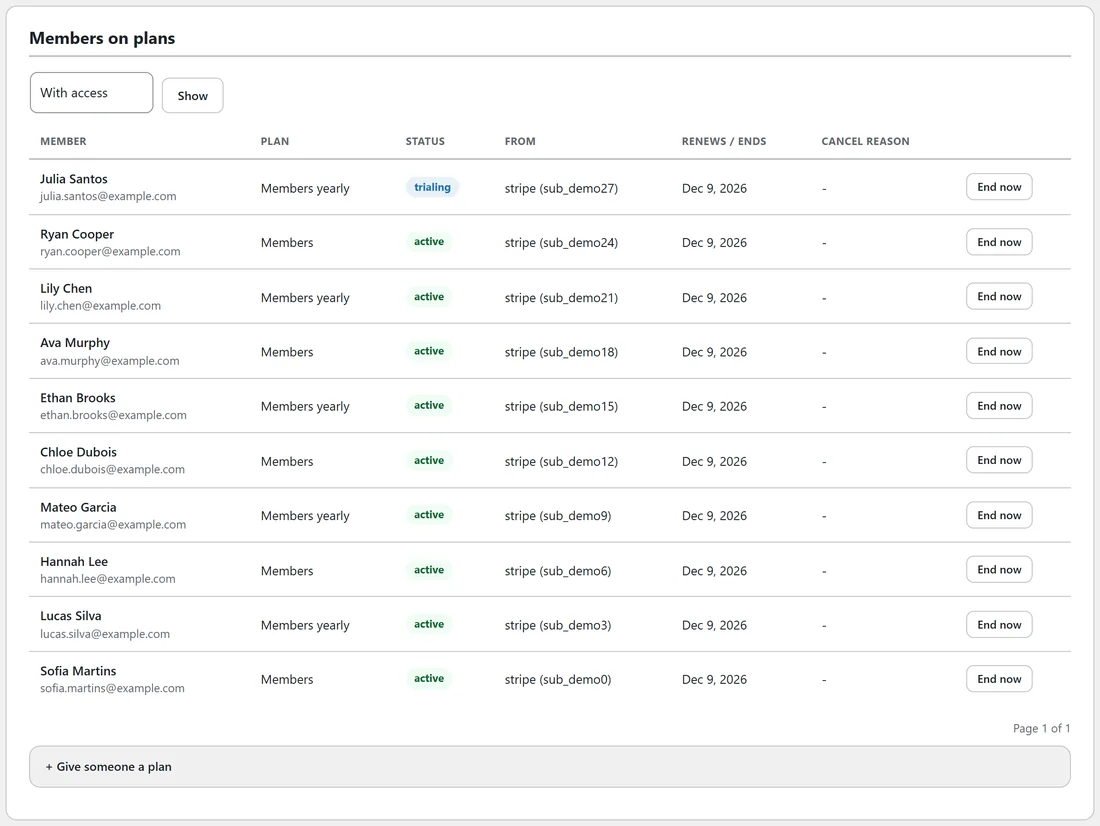
- Filter by status with the buttons at the top, starting with With access, then click Show.
- Each row shows the member, the plan, the status, where it came from (Stripe, manual or another plugin), when it renews or ends, and an End now button that ends that plan straight away.
- + Give someone a plan: type an Email, a Name (for a new account) and pick the Plan. It is given without payment, which is handy for guests, staff and prizes.
Payments:
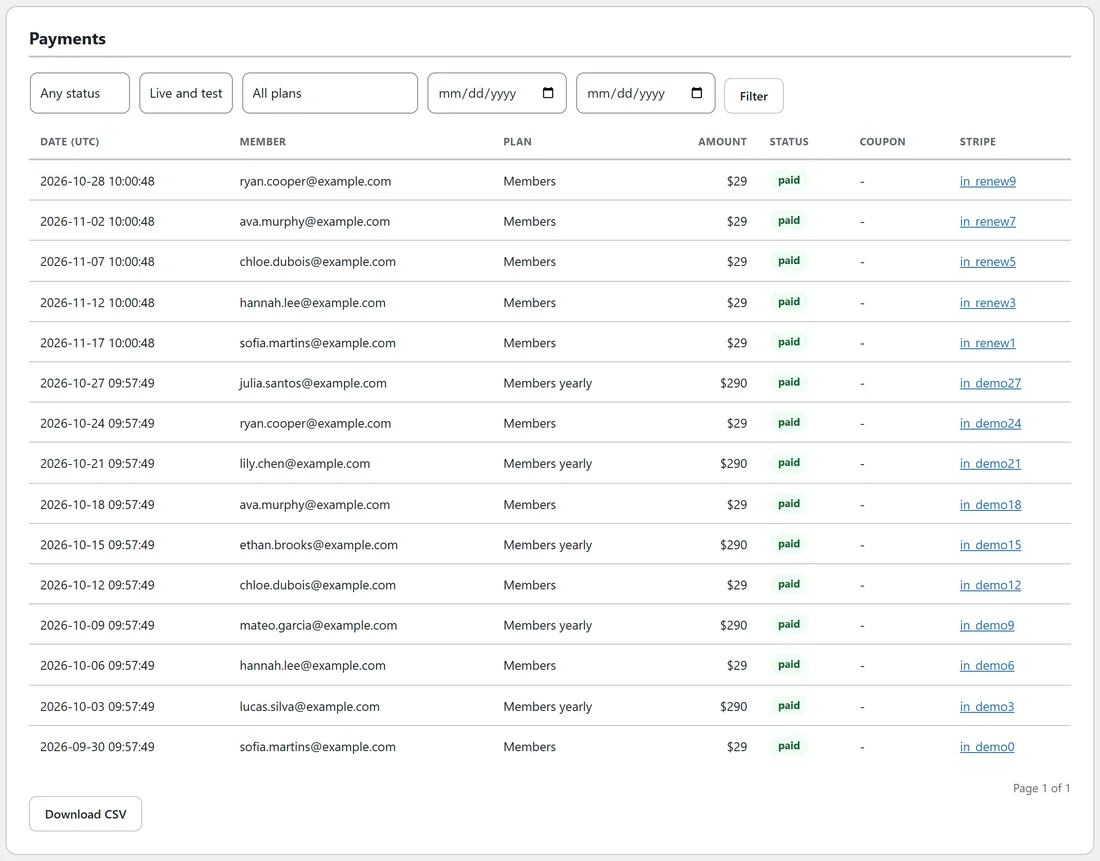
Filter by status, by Live and test, and by plan, then click Filter. Each row shows the date (in UTC), the member, the plan, the amount, the status and mode, any coupon, and the Stripe id. Download CSV exports the list for your accounts.
Payment problems:
When a renewal payment fails, the member keeps access for a grace period and gets a friendly email asking them to update their card. The plan shows Payment problem until it is sorted.
What members see:
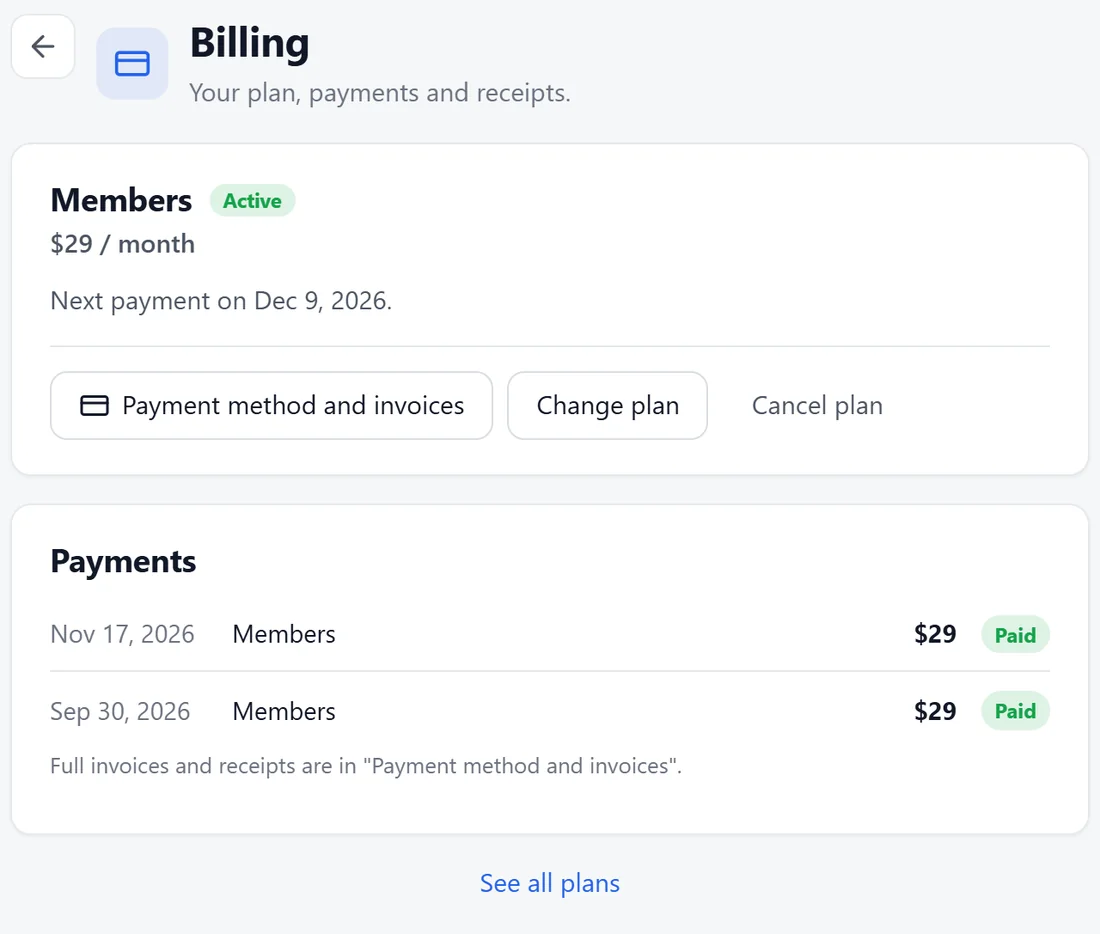
Members click their picture, then Billing.
- Their plan, its status, the price and the date of the next payment.
- Payment method and invoices opens Stripe's customer portal, where they update their card and download invoices.
- Change plan moves them to another plan.
- Payments lists their past payments.
- See all plans opens the pricing table.
A real example:
Sofia is on Members. Her Billing screen shows the plan as Active with her next payment date, and two past payments. When she wanted invoices for her accountant, she clicked Payment method and invoices and downloaded them from Stripe.
Tips:
- Give someone a plan is the quickest way to add a guest expert to your paid spaces.
- The Dashboard shows the same money numbers alongside your activity. See The Dashboard: Members, Activity And Money.