A forum space is the classic message board: a list of topics, each with its replies. It suits support, help and long-running discussions better than a fast-moving feed.
Where to find it:
In the app, click a forum space in the sidebar, for example Help and support. To make one, add a space with the type Forum under Community, then Spaces.
The topic list:
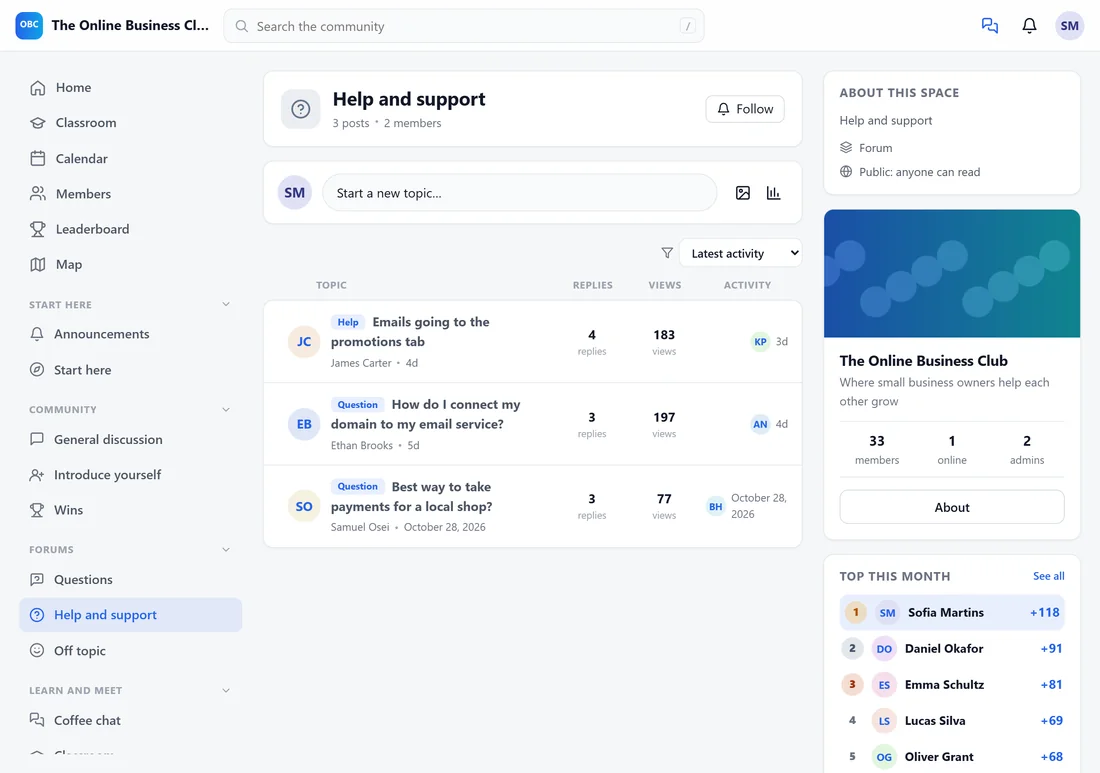
Each row shows the topic title, the author, the number of replies and views, and the latest activity. The sort menu at the top changes the order, and the space's default order is set in its space settings. Start a new topic opens the post window with this space already picked.
Starting a topic:
A forum topic needs a title. Add text, images, files or a poll as in any post. Under More options a member can choose Private topic: only me and the team can see it, which turns the forum into a simple help desk for personal questions.
Labels:
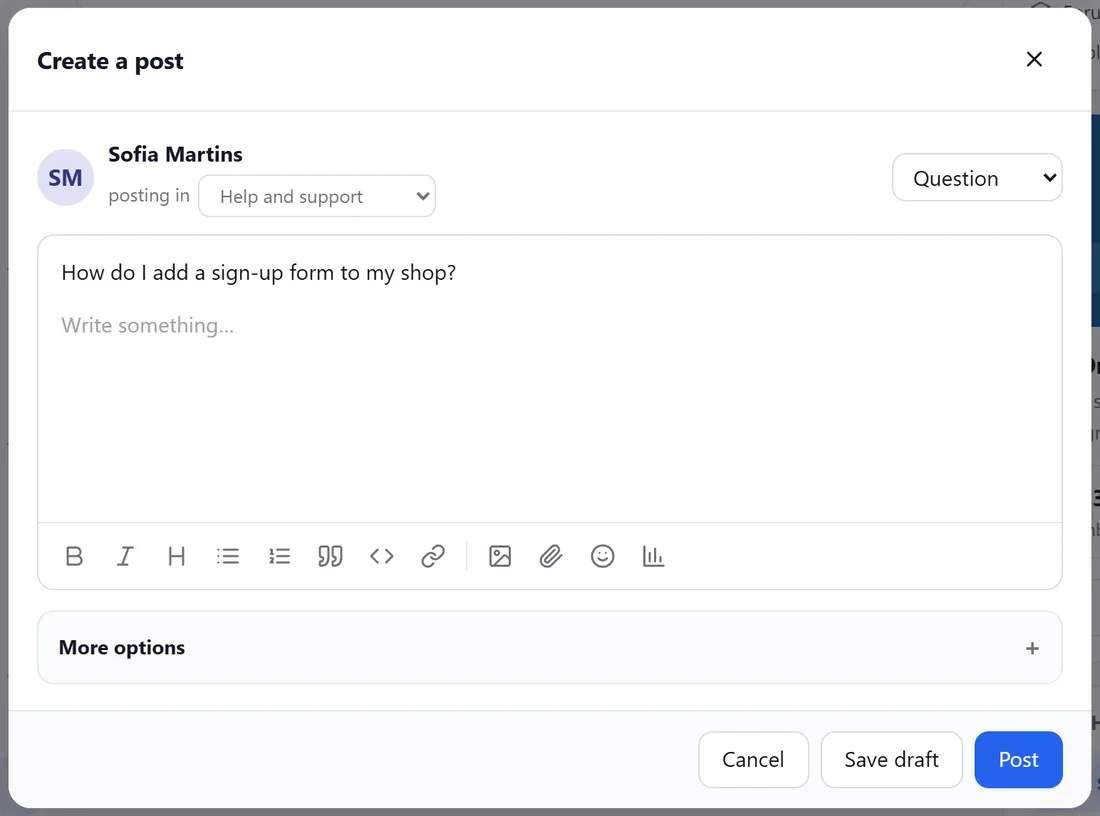
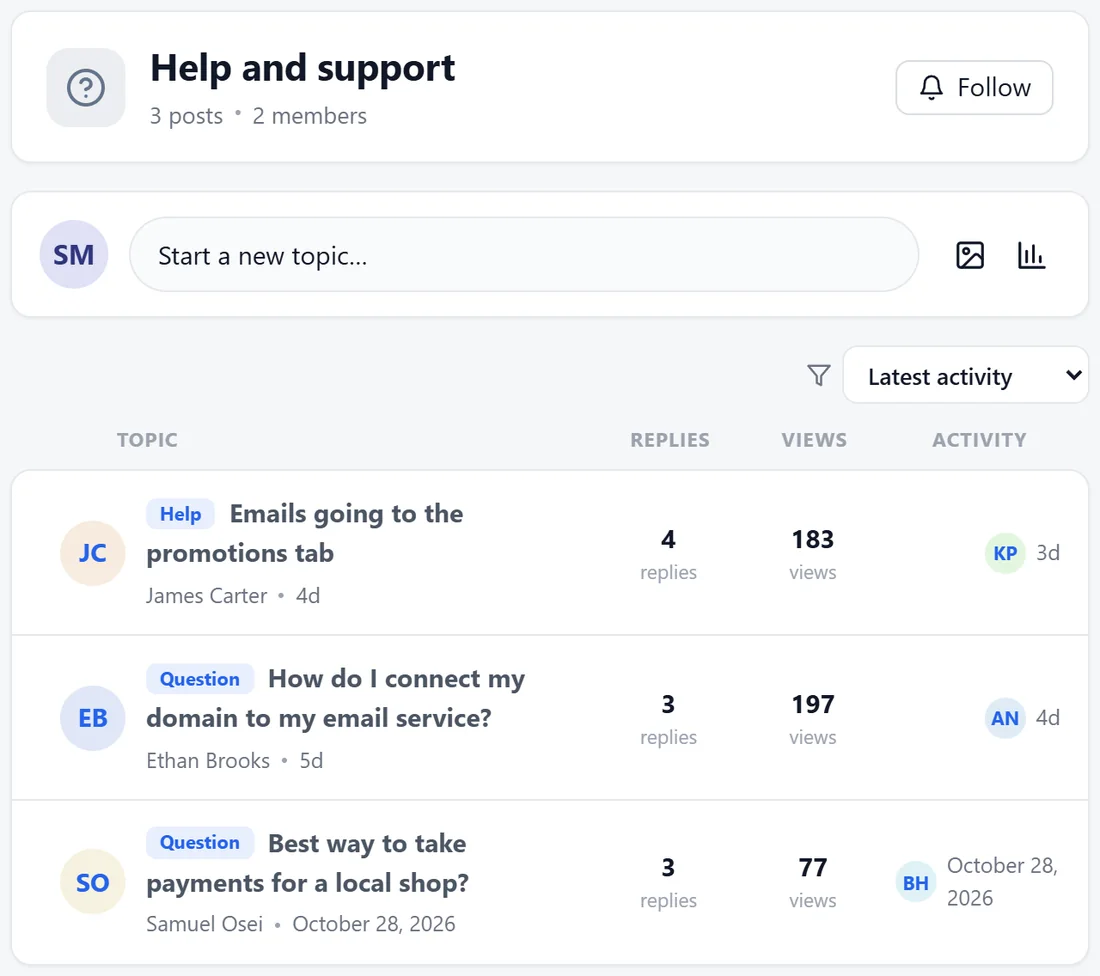
A forum can offer labels such as Question, Tip, Win or Help. You set them on the space under Labels for new posts (see Space Settings: Who Can See, Open, Post And Comment). When a member starts a topic, the Label menu at the top right of the post window lists them, with No label first. The chosen label shows in front of the topic title in the list and on the topic, so people can see at a glance what each topic is.
Keeping a forum tidy:
From the three-dot menu on a topic, your team can do the following.
- Pin to the top of the space, so it stays above the list.
- Turn off comments, to lock a finished topic. Turn comments back on reopens it.
- Mark as solved, which shows a Solved badge on the topic.
- Move to another space.
- Merge into another topic: paste the link or number of the topic to merge into. This topic becomes a reply in that topic and its replies move along.
- Split into a new topic: tick the replies to move. The earliest one becomes the new post.
New since the last visit:
Topics with activity since a member last opened the space are marked, so regulars see at a glance what changed.
A real example:
Help and support uses the labels Question, Tip, Win and Help. James labelled his topic about emails going to the promotions tab as Help, and Ethan labelled his domain question as Question. When Aisha's reply solved James's topic, Alex opened the three-dot menu and chose Mark as solved. A later topic about the same thing was merged into it, so the answer lives in one place.
Tips:
- Use a Q&A space instead when every topic is a question that should have one best answer. See Q&A Spaces: Votes And Best Answers.
- Set the forum's sort to Unanswered under its space settings during busy weeks, so nothing is missed.
- With the AI connected, solved topics feed the AI's answers. See The AI First Reply And Your Knowledge.