Events are created inside the community, from the calendar. The event window covers everything from a quick weekly call to a paid in-person workshop.
Where to find it:
Open Calendar in the app as the owner or an admin and click New event. To change an event, open it and click Edit.
When:
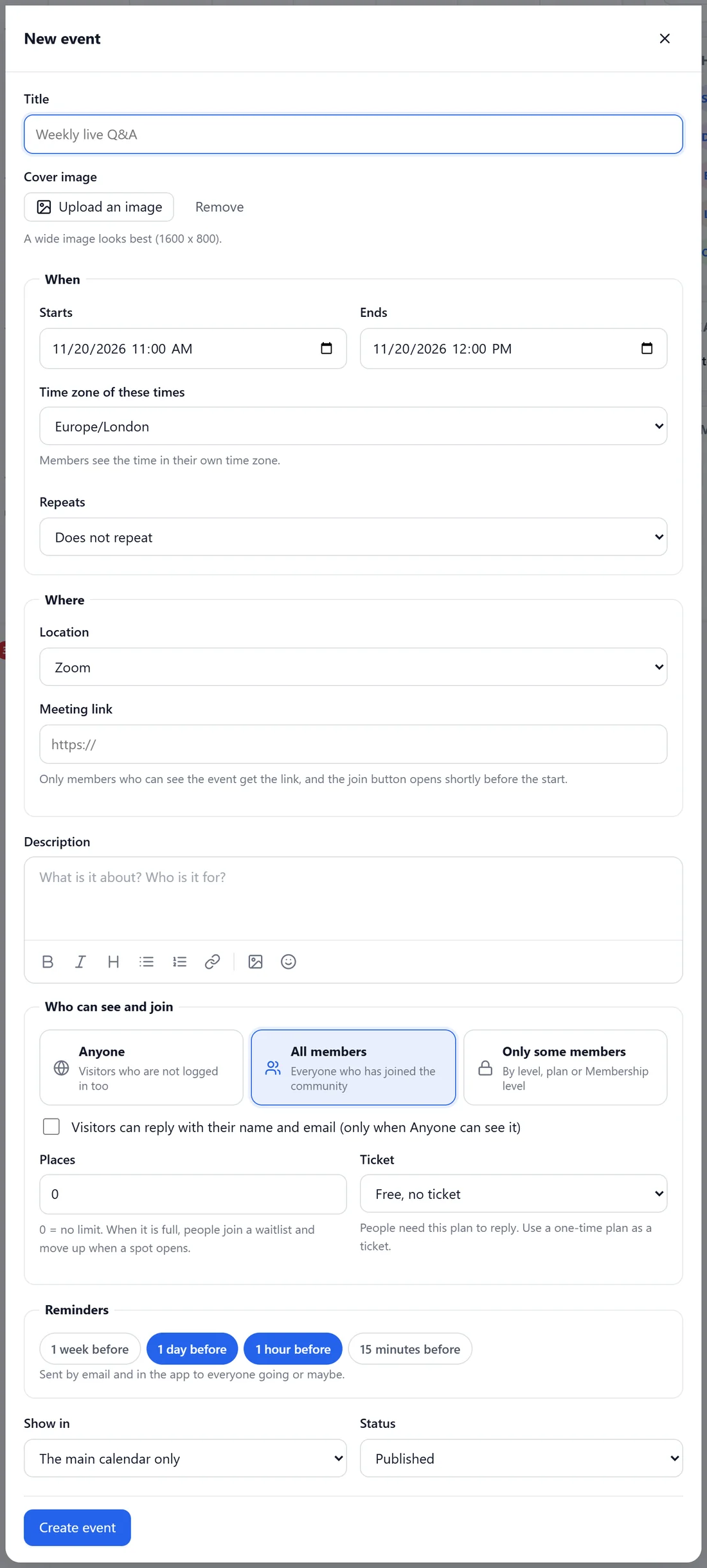
- Title and an optional Cover image. A wide image looks best (1600 x 800).
- Starts and Ends.
- Time zone of these times. Members see the time in their own time zone.
Repeats:
Does not repeat, Daily, Weekly or Monthly.
- Every: the number of days, weeks or months between dates.
- Weekly: tick On these days.
- Monthly: Which day of the month: the same date (for example the 15th), the same weekday (for example the 2nd Tuesday), or the last weekday of the month (for example the last Friday).
- Ends: Never, On a date, or After a number of times.
Where:
Location: Zoom, Google Meet, Microsoft Teams, YouTube Live, Online (any link), In person (with an address), or a ResultsAiX Webinars webinar when that plugin is installed. For a webinar, members go to its register page as usual. Only members who can see the event get the meeting link, and the join button opens shortly before the start.
Description:
What it is about and who it is for, with the usual formatting tools.
Who can see and join:
- Anyone, All members, or Only some members (by level, plan or Membership level).
- Visitors can reply with their name and email (only when Anyone can see it).
- Places: 0 means no limit. When it is full, people join a waitlist and move up when a spot opens.
- Ticket: Free, no ticket, or a plan people need to reply. Use a one-time plan as a ticket.
Reminders:
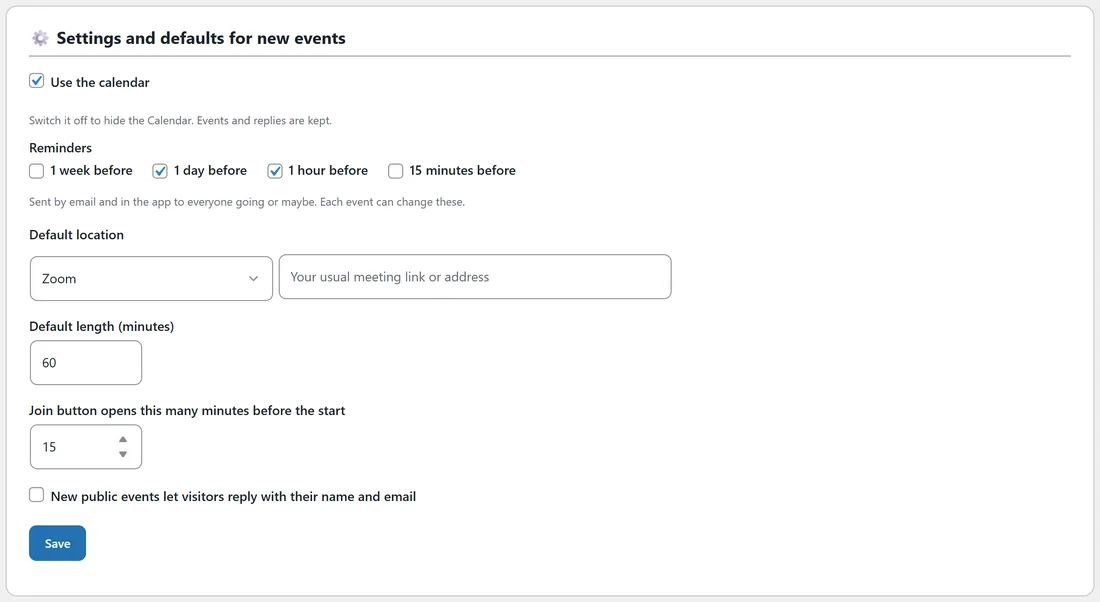
1 week before, 1 day before, 1 hour before and 15 minutes before. They are sent by email and in the app to everyone going or maybe. New events start with the defaults from Content, then Events, under Settings and defaults for new events (1 day before and 1 hour before are ticked to begin with), and each event can change them.
Show in and status:
- Show in: the main calendar only, or an Events space as well.
- Status: Published, or Draft (only staff see it). The same menu also marks an event that is not going ahead.
- When editing, If the time or place changes, tell everyone who replied.
Click Create event or Save changes.
A real example:
Alex made the Weekly Q&A call: Saturdays at 5 pm Europe/London, Weekly on Sat, ending Never, on Zoom, for All members, with reminders 1 day and 1 hour before. For the Sales page teardown workshop, Alex set Places to 20 and a one-time Sales page teardown ticket plan as the Ticket.
Tips:
- Set the default location and length on the Events tab so new events need fewer clicks.
- Attending can earn points. Mark attendance after the call, from the event page.