Your community does not have to stay at its own address. Six shortcodes, with matching blocks, show parts of it on your normal WordPress pages, such as your home page or a sales page.
Where to use them:
In the block editor, add the blocks from the Widgets group, or add a Shortcode block and type the shortcode. They also work in classic editors and page builders that accept shortcodes.
The shortcodes:
- [rac_feed space="general" limit="5"]: the latest posts of a public space. Leave out space for all public spaces.
- [rac_leaderboard limit="5" period="30"]: top members for 7 or 30 days, or 0 for all time.
- [rac_events limit="3"]: upcoming events.
- [rac_courses]: your courses as cards.
- [rac_member_count]: a line such as 1,234 members.
- [rac_join_button label="Join us"]: a button to the join page. Members who are already in see Open the community.
Extra options:
- Add title="..." for a heading above any of them.
- Add community="slug" if you run more than one community.
- For space, use the space's address name, as shown on the Spaces board.
What visitors see:
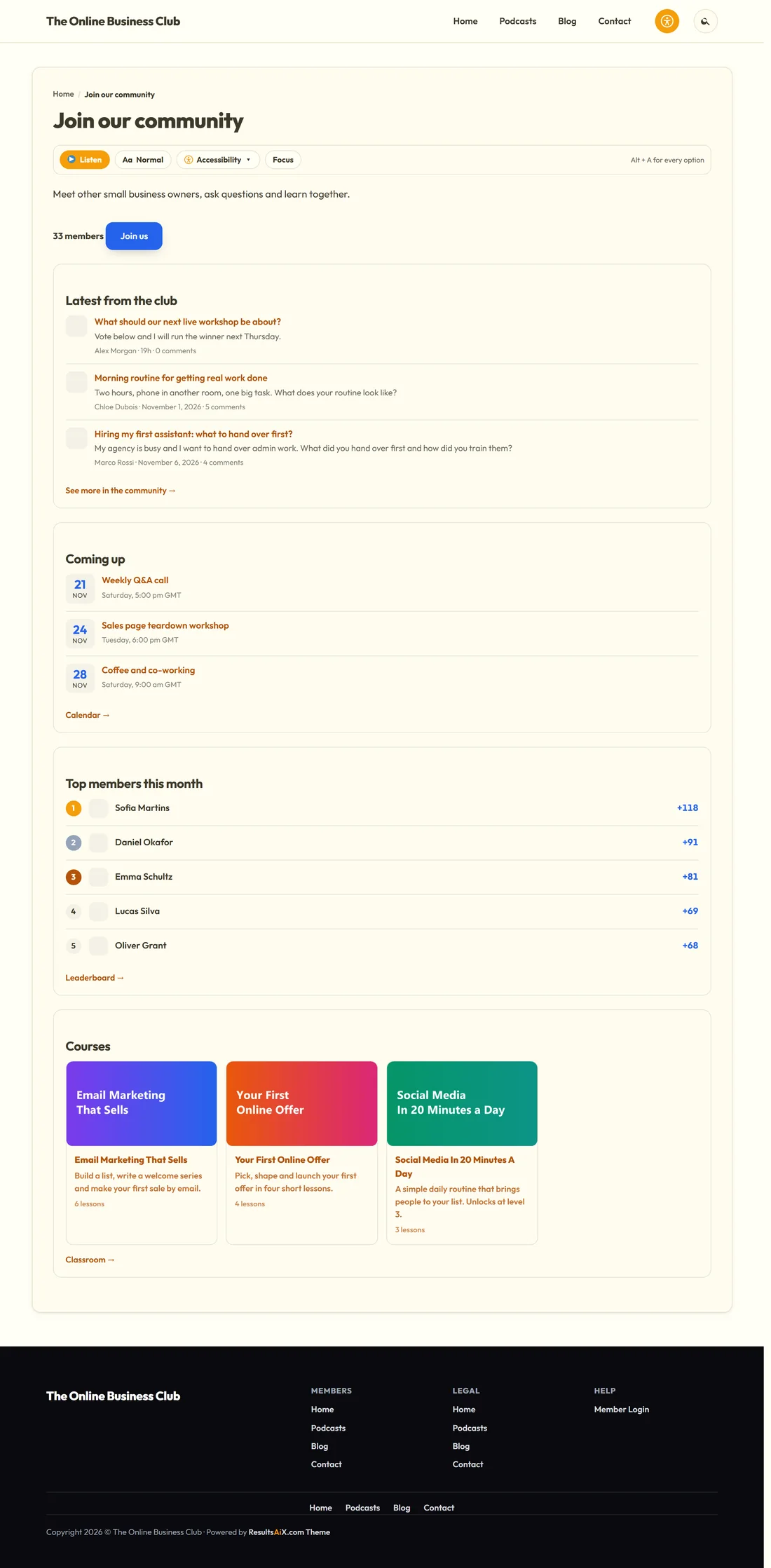
Only public content is shown to visitors. Posts in private and secret spaces never appear on your pages.
A real example:
Alex made a page called Join our community on yoursite.com with a short intro, then [rac_member_count], [rac_join_button label="Join us"], [rac_feed space="general-discussion" limit="3" title="Latest from the club"], [rac_events limit="3" title="Coming up"], [rac_leaderboard limit="5" period="30" title="Top members this month"] and [rac_courses title="Courses"]. Visitors see a living community before they join.
Tips:
- Put [rac_member_count] and [rac_join_button] near the top of your sales page. Social proof and a clear next step sell together.
- The page uses your theme's look, while the cards use your community accent colour.