A quiz at the end of a lesson helps students check what they learned and gives you a way to make sure they did. Quizzes are optional, and each lesson can have one.
Where to find it:
Open the course, click Edit, click the pencil on a lesson and click Add a quiz (or Edit quiz) in the lesson editor. Save the lesson first, then you can add a quiz.
Quiz settings:
- Quiz title.
- Pass mark (%): the score needed to pass.
- Attempts allowed (0 = no limit).
- Students must pass to complete the lesson: when ticked, the lesson cannot be marked complete until they pass.
Questions:
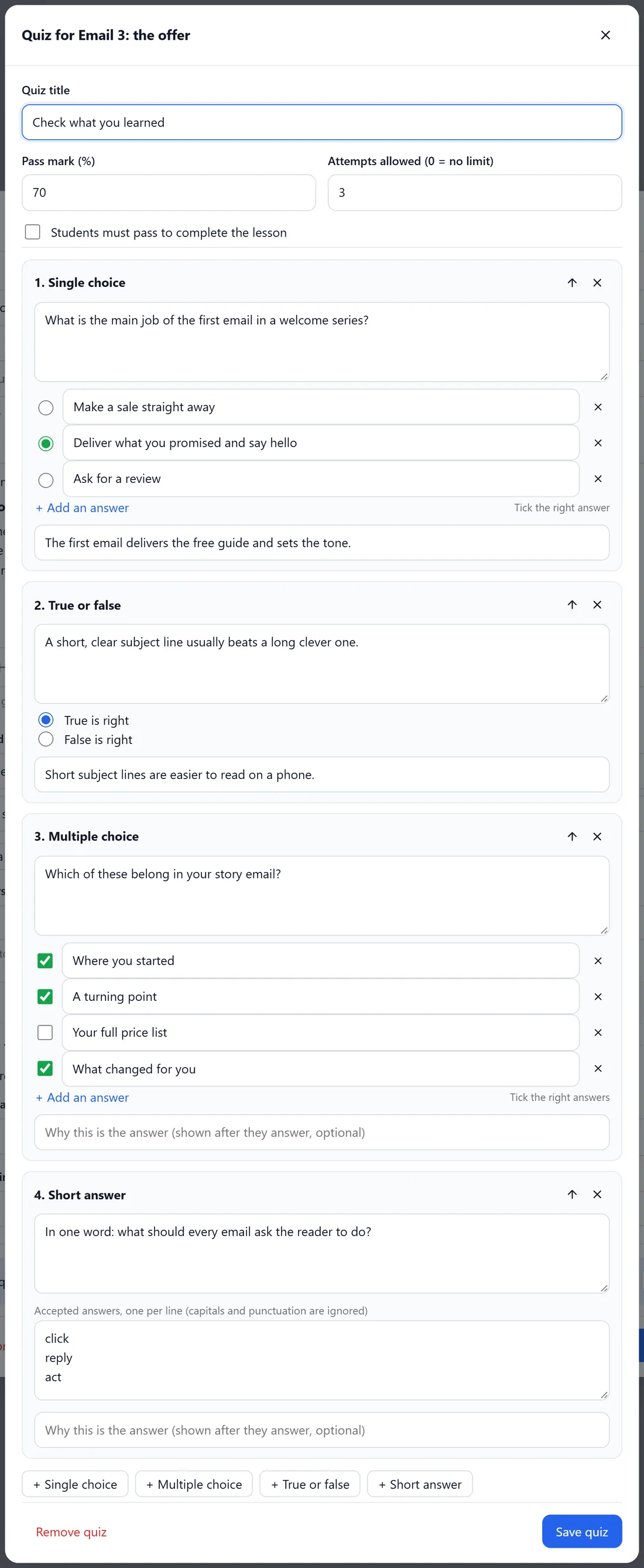
Click the question type you want to add.
- Single choice: one right answer. Click the circle beside the right one.
- Multiple choice: tick every right answer.
- True or false: pick True is right or False is right.
- Short answer: type the answers you accept.
Each question has an optional explanation, shown after they answer. Use the arrow to move a question up and the cross to remove it. Click Save quiz. Remove quiz deletes it.
With the AI:
Make questions with AI writes questions from the lesson text or transcript. Check them, then save.
What students see:
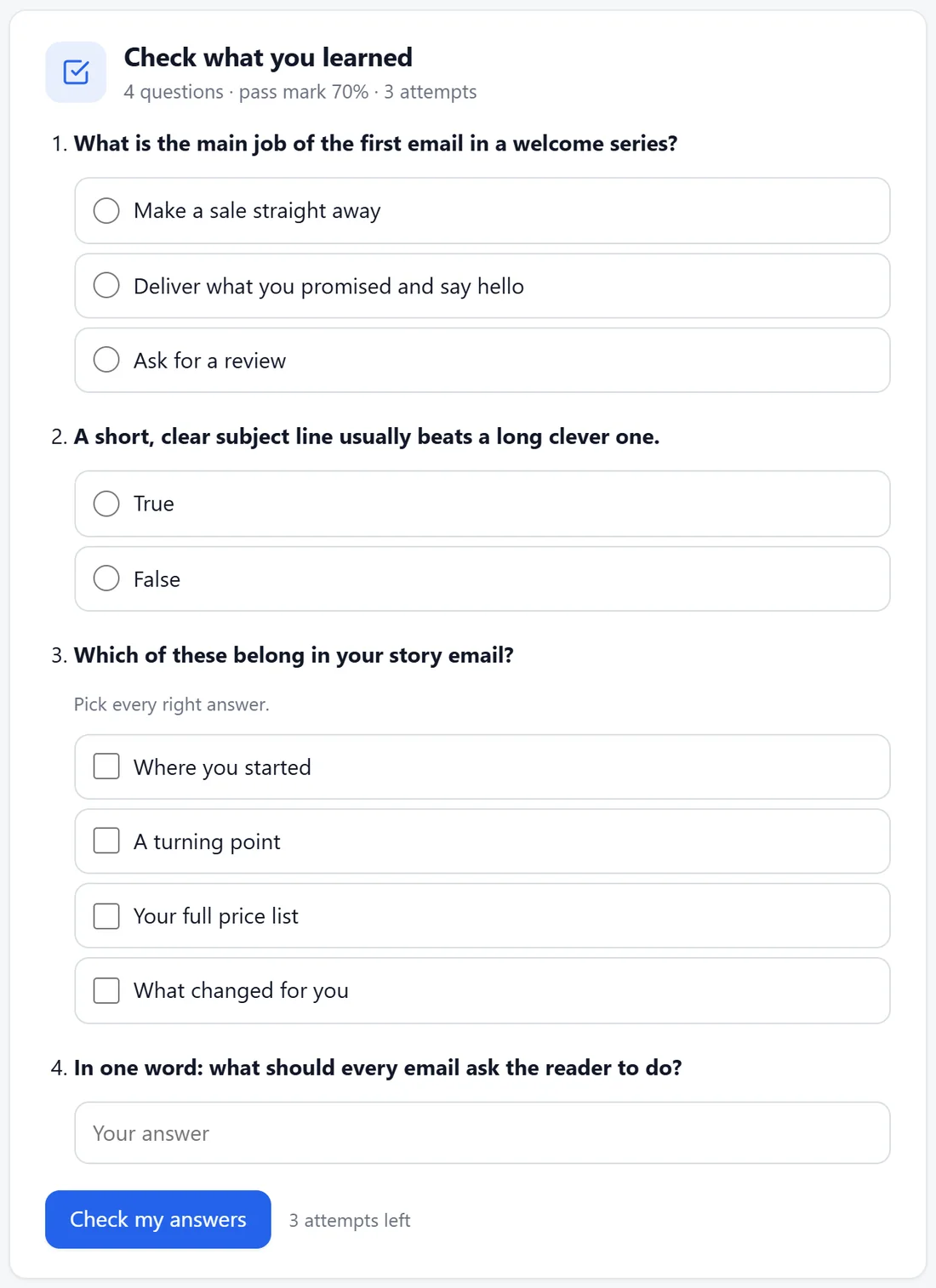
The quiz sits at the end of the lesson with the number of questions and the pass mark. They answer and click Check my answers. They see their score, which answers were right, and the explanations. If they did not pass and have attempts left, they can Try again.
A real example:
The last lesson of Email Marketing That Sells has a four-question quiz called Check what you learned: one single choice, one true or false, one multiple choice and one short answer, with a pass mark of 70 and 3 attempts. Passing is not required, so students can still finish the course.
Tips:
- Use explanations generously. They turn a wrong answer into a second lesson.
- Make passing required only on lessons that really matter, such as a final check before a certificate.