The classroom holds your courses. You build them inside the community itself, the way your members see them, so what you make is exactly what they get.
Where to find it:
In the app, click Classroom in the sidebar while logged in as the owner or an admin. In WordPress, Content, then Classroom shows your courses at a glance and the switch to use the classroom.
The Classroom tab in WordPress:
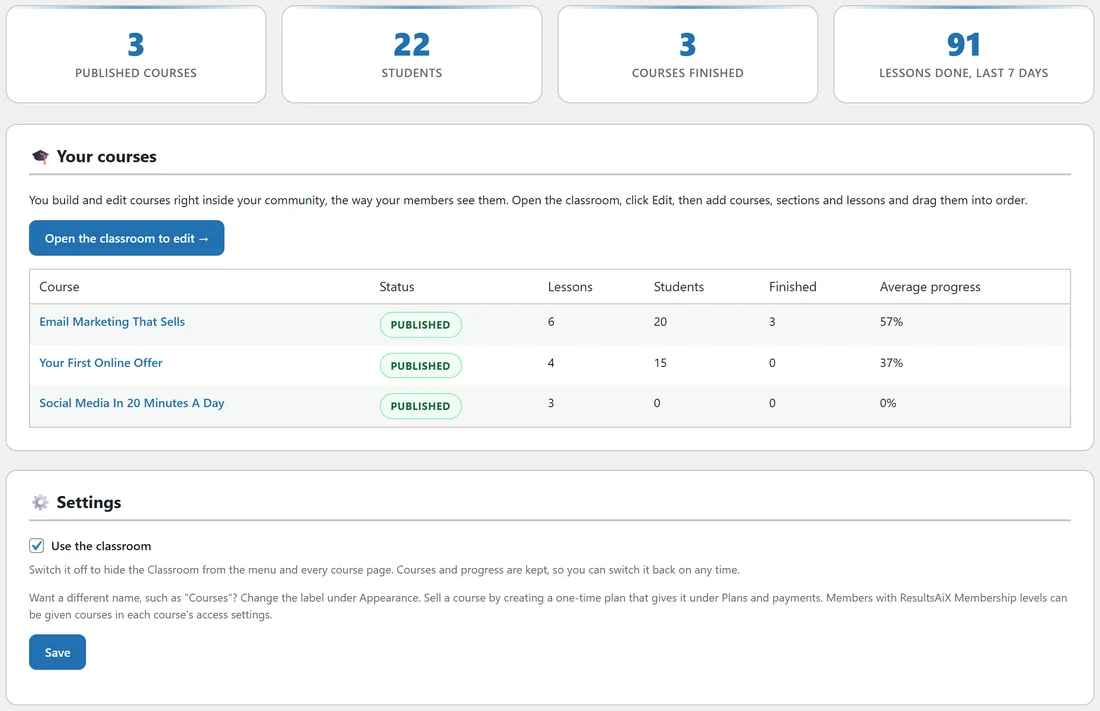
- Published courses, Students, Courses finished and Lessons done in the last 7 days.
- Your courses: each course with its status, lessons, students, how many finished and the average progress.
- Open the classroom to edit takes you to the app.
- Use the classroom: switch it off to hide the Classroom from the menu and every course page. Courses and progress are kept, so you can switch it back on any time.
Create a course:
- Open Classroom in the app and click New course.
- Type the Course name and a Short description.
- Upload a cover image. A 16:9 image looks best (1280 x 720).
- Choose Who can take it, the lesson order and drip. See Course Access, Drip, Cohorts And Certificates.
- Click Create course. A first section called Getting started is added for you.
Edit a course:
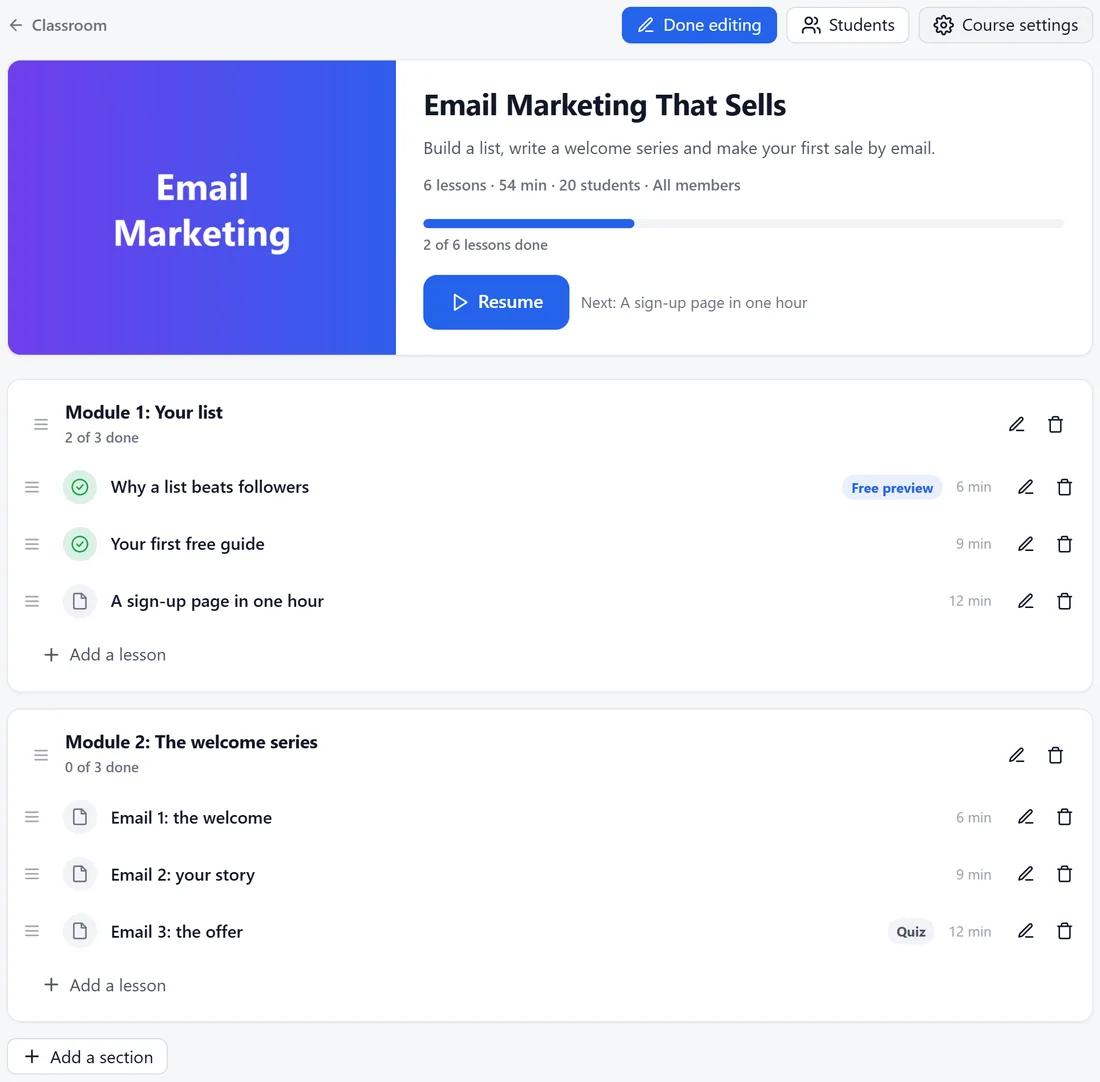
Open the course and click Edit. Edit mode shows these extras.
- Course settings and Students at the top.
- A pencil and bin on every section and lesson.
- Add a lesson under each section and Add a section at the bottom.
- Drag handles to put sections and lessons in order.
Click Done editing when you finish.
Add a lesson:
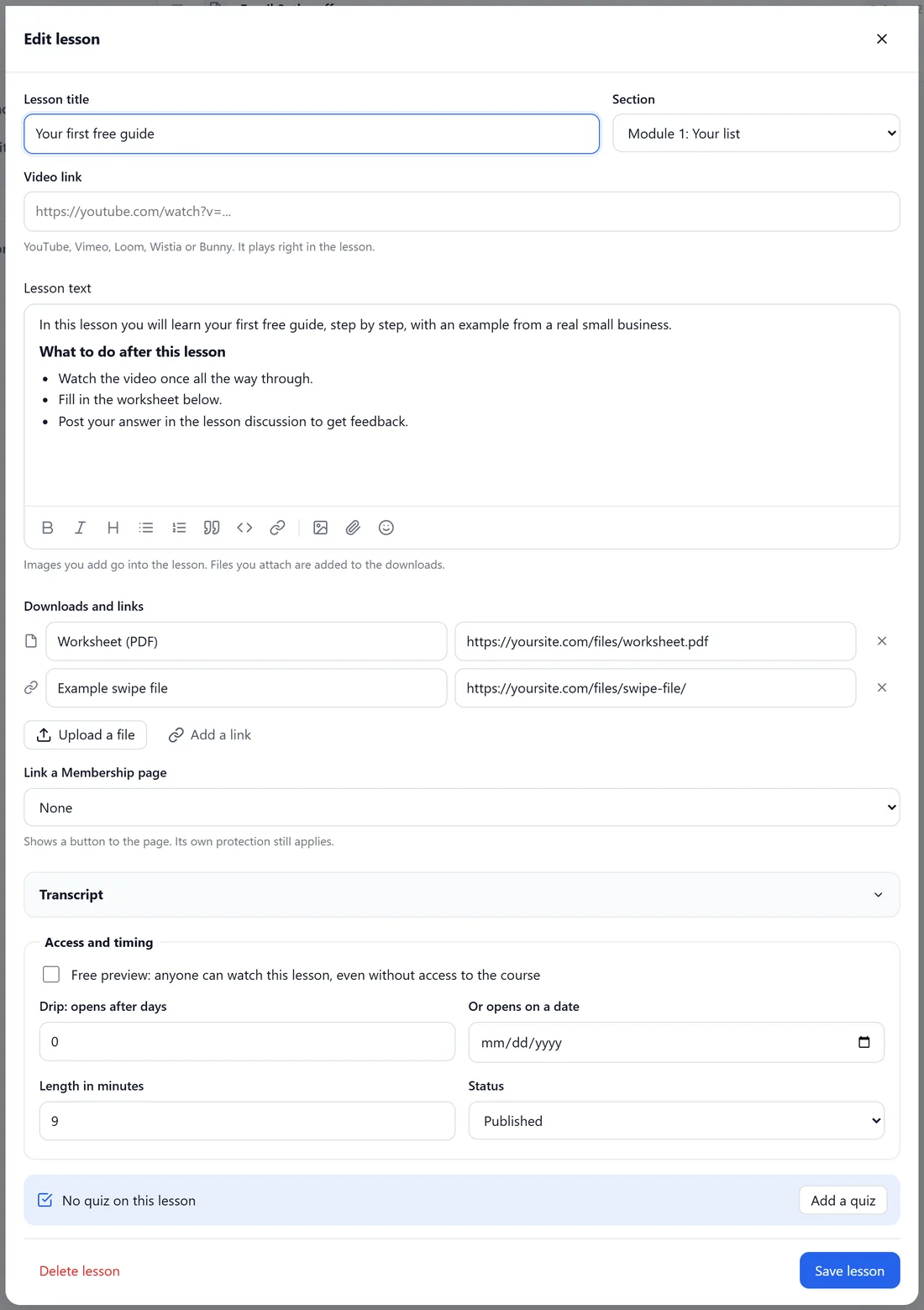
- Click Add a lesson under a section.
- Type the Lesson title and pick the Section.
- Paste a Video link: YouTube, Vimeo, Loom, Wistia or Bunny. It plays right in the lesson.
- Write the Lesson text. Images you add go into the lesson. Files you attach are added to the downloads.
- Under Downloads and links, click Upload a file or Add a link.
- Optionally Link a Membership page (when ResultsAiX Membership is installed) or another page; the lesson shows a button to it, and the page's own protection still applies.
- Paste a Transcript if you have one.
- Under Access and timing set Free preview, drip days or a date, the Length in minutes and the Status (Published or Draft).
- Add a quiz if you like. See Quizzes.
- Click Save lesson. Tick the box to tell students about the new lesson when it is published.
Sections:
A section has a name and its own drip: Opens after this many days, or Opens on a date. Every lesson in the section waits until then.
With the AI connected:
Write this lesson with AI drafts the lesson text from the title and your notes, and Make questions with AI writes a quiz from the lesson text.
A real example:
Alex built Email Marketing That Sells with two sections, Module 1: Your list and Module 2: The welcome series, three lessons each, a worksheet download on every lesson and a quiz on the last one. Why a list beats followers is a free preview, so visitors can try it.
Tips:
- Short lessons finish more often. Six lessons of ten minutes beat one of an hour.
- Want the menu to say Courses instead of Classroom? Change it under Appearance, Menu words.
- Each lesson has its own discussion, so questions stay next to the lesson.