The member card shows everything about one person on one panel, and lets you act on it without leaving the list.
Where to find it:
Open Community, then Members, and click a member's name. The card slides in from the right.
The top of the card:
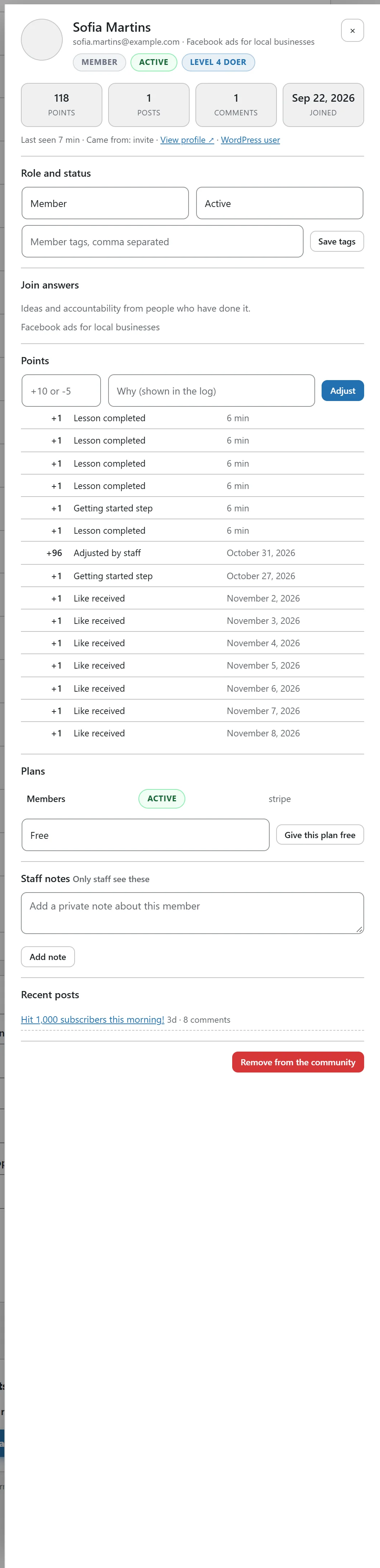
Their name, email and headline, with badges for role, status and level. Four boxes show Points, Posts, Comments and Joined. Below them: Last seen, where they came from, View profile (opens their profile in the app) and WordPress user.
Role and status:
- Role: Member, Moderator, Admin or Owner.
- Status: Active, Waiting for approval, Suspended or Banned.
A change saves as soon as you pick it.
Member tags:
Type labels separated by commas, for example vip, podcast guest, and click Save tags. Tags are private to your team.
Join answers:
The answers they gave to your join questions.
Points:
Type a number such as +10 or -5 and a reason in Why (shown in the log), then click Adjust. Below is their points log: each line shows the points, the reason (Like received, Post, Comment, Best answer, Lesson completed, Course completed, Event attended, Daily streak, Getting started step or Adjusted by staff) and when.
Plans:
Their current plans with a Remove button, and Give this plan free to add one without payment.
Staff notes:
Only staff see these. Type a private note and click Add note. Each note shows who wrote it and can be deleted.
Recent posts:
Their latest posts with comment counts, linked to the app.
Remove from the community:
Removes them from this community. Their posts stay, and they can join again later.
A real example:
Sofia Martins hosted a great live session, so Alex opened her card, typed 20 and Hosted the November workshop in Points and clicked Adjust. Alex also added the tag speaker and a staff note: Happy to run another session in the new year.
Tips:
- Use tags to keep track of people for your own follow up. They are never shown to members.
- Staff notes are the right place for anything a moderator should know before acting, for example a warning given in a message.
- For a time-limited break, use mute or suspend from the moderation tools in the app. See Moderation: The Queue, Word Filter And Limits.