The AI in ResultsAiX Community runs on your own key from the AI service you choose. You pay the service directly, never through us, and members only ever see the AI under your bot name. Nothing AI runs until a key is connected.
Where to find it:
Open AiX Community, then Grow, then AI. The Connect the AI box is at the top.
The seven services:
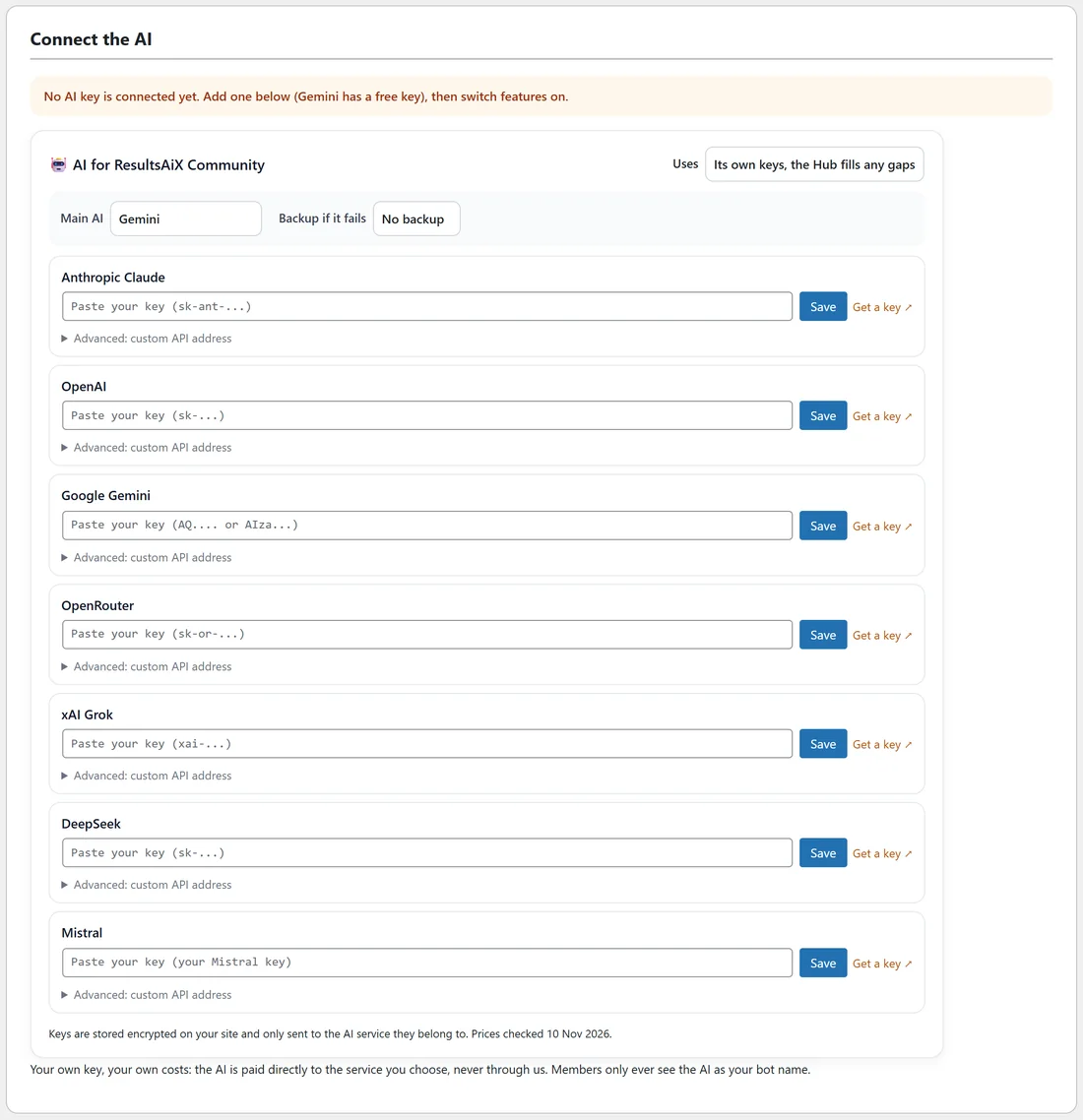
- Anthropic Claude.
- OpenAI.
- Google Gemini, which has a free key to start with.
- OpenRouter, one key for many models.
- xAI Grok.
- DeepSeek.
- Mistral.
Connect a key:
- Click Get a key on the service you want. Its key page opens in a new tab.
- Create a key there and copy it.
- Paste it into the row for that service and click Save. The key is saved and checked.
- The line at the top changes to say the AI is connected.
Keys are stored encrypted on your site and only sent to the AI service they belong to.
Main AI and backup:
- Uses: Its own keys; Its own keys, the Hub fills any gaps (uses keys saved in the ResultsAiX Hub when a service here has none); or No AI in this plugin.
- Main AI: The first one with a key, or a service you pick.
- Backup if it fails: No backup, or a second service to try when the main one does not answer.
Advanced: custom API address:
Each service has an Advanced: custom API address link for your own gateway or proxy. Most people leave it alone.
When the AI cannot answer:
If the service sends an error, the plugin shows it in the service's own words in Usage and costs, under Recent calls, so you know exactly what to fix, such as a key with no credit left.
A real example:
Alex started with a free Google Gemini key as the Main AI and added an OpenAI key as the Backup, so the AI keeps answering if one service has a busy moment.
Tips:
- Set a Daily budget before you switch features on. See The Copilot, The Digest Intro And Your Daily AI Budget.
- Next, choose what the AI does: The AI First Reply And Your Knowledge, and AI Moderation, Catch Me Up, Translate And Writing Help.