The About page is your community's own sales page, built from your settings. It is where you send people from your website, emails and ads.
Where to find it:
Members and visitors open About on the community card, or yoursite.com/community/about/. You fill it in under Money, then Plans and payments, in the About page section. Click View the page to see it.
What the About page shows:
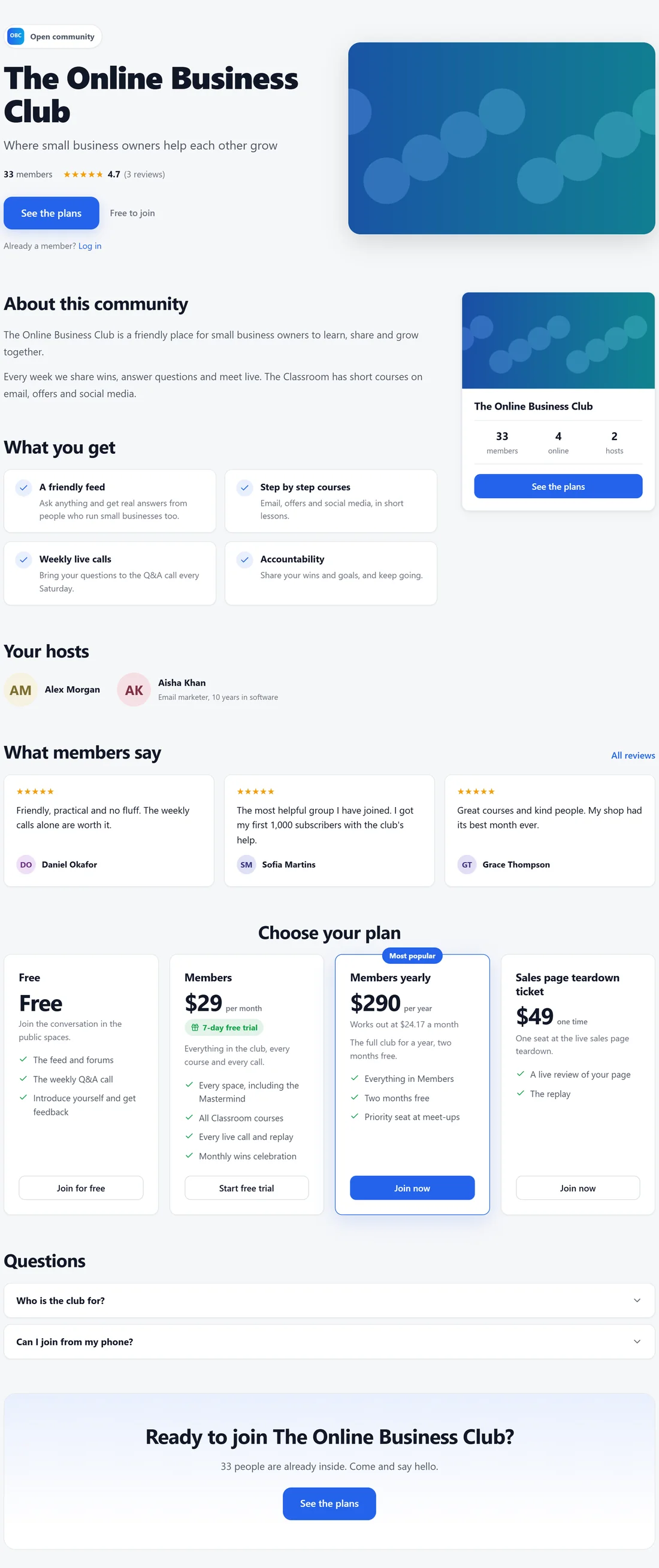
- Your cover image, community name and tagline, the number of members and your star rating.
- Buttons to see the plans or join.
- Your video, if you add one.
- About this community: your description.
- What members get: your benefits.
- Your hosts: the owner and admins.
- What members say: reviews from members.
- Choose your plan: the pricing table with each plan's price and what is included.
- Questions: your FAQ.
Fill it in:
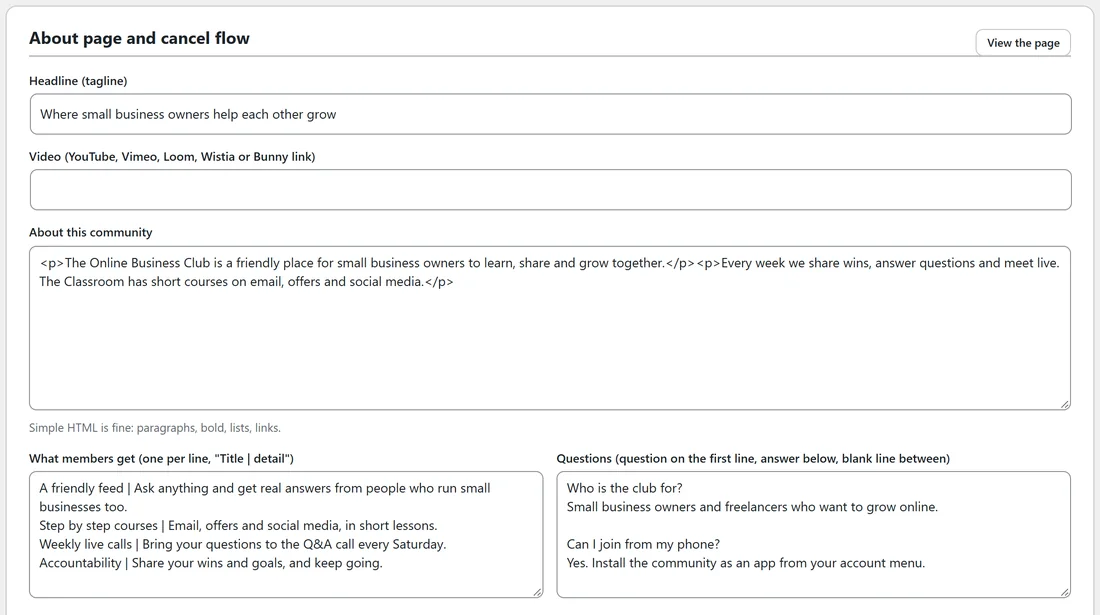
- Headline (tagline): the one sentence that makes the right person say that is for me.
- Video: a YouTube, Vimeo, Loom, Wistia or Bunny link.
- About this community: simple HTML is fine.
- What members get: one per line, written as Title | detail.
- Questions: the question on the first line, the answer below, and a blank line between each.
Click Save.
Reviews:
When Community reviews on the About page is on under Settings, Features, members can leave stars and a short review. Your team can feature or hide reviews. The best ones show on the About page.
Doors:
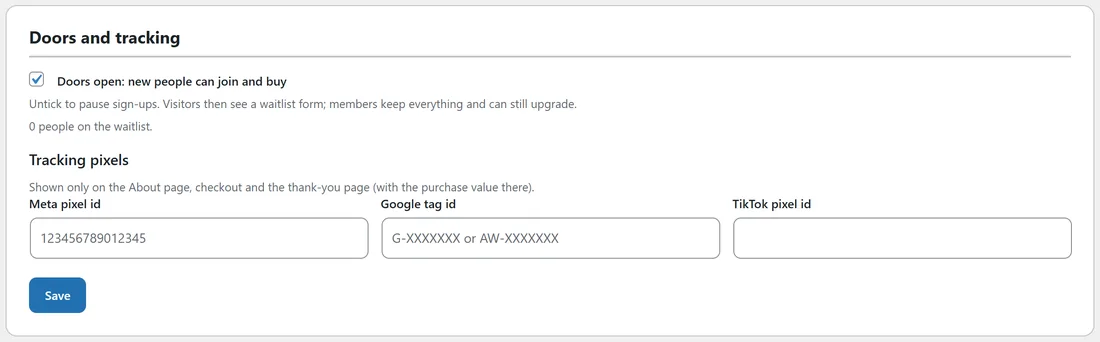
Under Doors and tracking, Doors open: new people can join and buy. Untick it to pause sign-ups. Visitors then see a waitlist form; members keep everything and can still upgrade. The number of people on the waitlist is shown, so you can let them know when doors open again.
Tracking pixels:
Add your Meta pixel id, Google tag id and TikTok pixel id. They are shown only on the About page, checkout and the thank-you page, with the purchase value there, so your ad platforms can measure sign-ups and sales.
A real example:
The Online Business Club's About page leads with the tagline Where small business owners help each other grow, four benefits (A friendly feed, Step by step courses, Weekly live calls, Accountability), three member reviews and the four plans, followed by two questions.
Tips:
- Close the doors for a week before a launch and collect a waitlist, then open them with an email.
- Ask your happiest members for a review after they finish a course.