Every space has its own rules. You decide who sees it in the sidebar, who can read it, who can post and comment, and how its posts are shown. This is how you make a members-only space, a level-locked mastermind or an announcements space only your team posts in.
Where to find it:
Open Community, then Spaces, and click the pencil on a space. The space editor opens.
The basics:
- Name and Address name: the address name is the end of the space link, such as /mastermind.
- Type: Feed, Forum, Q&A, Chat, Course, Events, Page or Link. A Link space asks for a Link address and a Page space has Page content.
- Group, Icon and colour, and Description, which shows at the top of the space.
Who can see it:
- Public: listed, guests can read it, and search engines can find it.
- Private: listed for members, and members with access can read it.
- Secret: hidden, only invited people see it.
Who can open it:
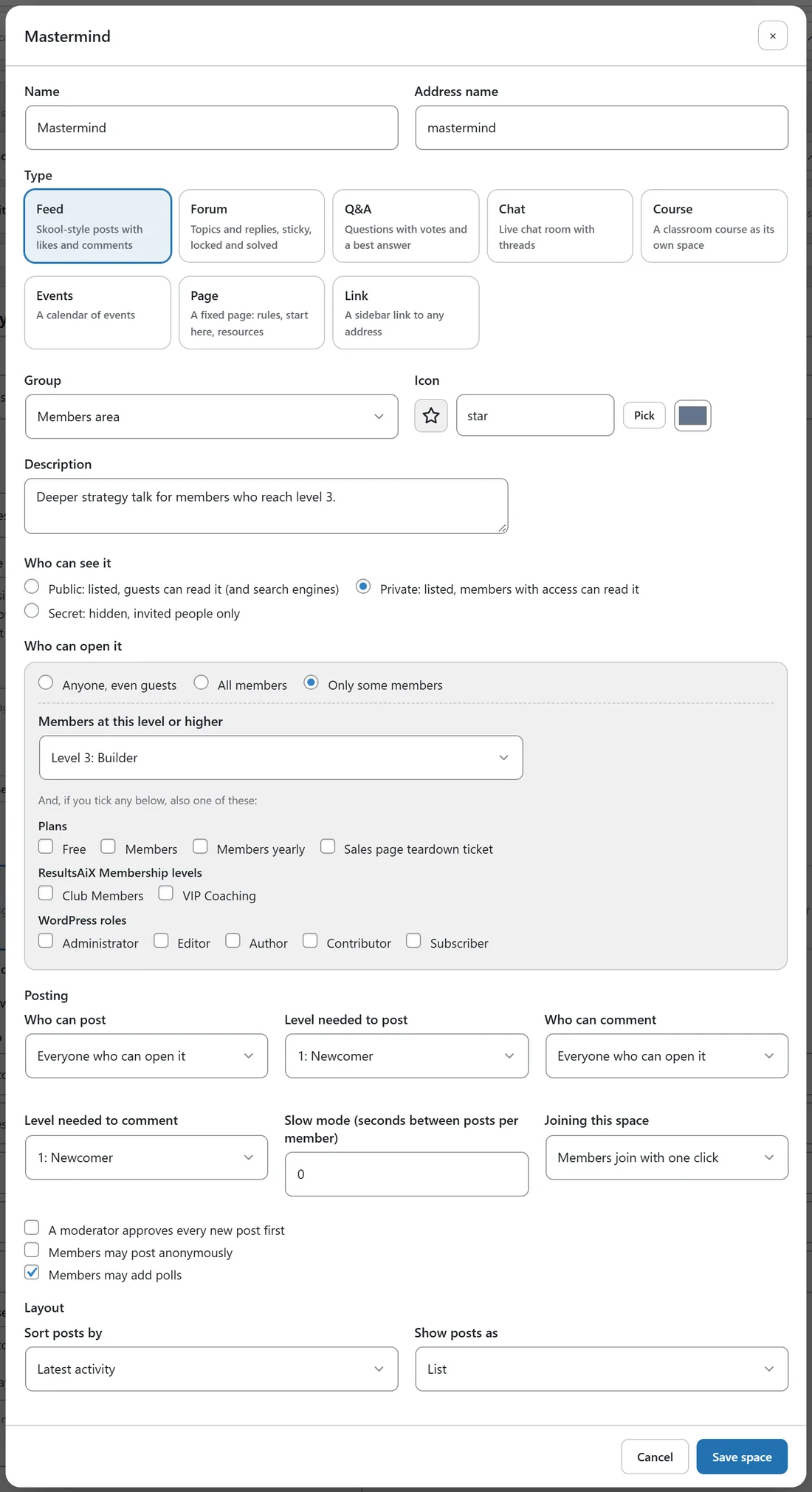
- Anyone, even guests.
- All members.
- Only some members: then pick Members at this level or higher, and, if you tick any, also one of these: Plans, ResultsAiX Membership levels or WordPress roles.
A member needs the level you set and, when you tick plans, Membership levels or roles, at least one of them. Your team always has access. Members who cannot open a space see what unlocks it, for example Unlocks at level 3 (Builder).
Posting:
- Who can post: Everyone who can open it, Members at a level (then Level needed to post), or Only admins and moderators.
- Who can comment: Everyone who can open it, Members at a level, Only admins and moderators, or Nobody (comments off).
- Slow mode: seconds a member must wait between posts in this space. 0 means no wait. Moderators are never slowed.
- Joining this space: Members join with one click, or Members ask, staff approve.
- A moderator approves every new post first.
- Members may post anonymously.
- Members may add polls.
Labels for new posts:
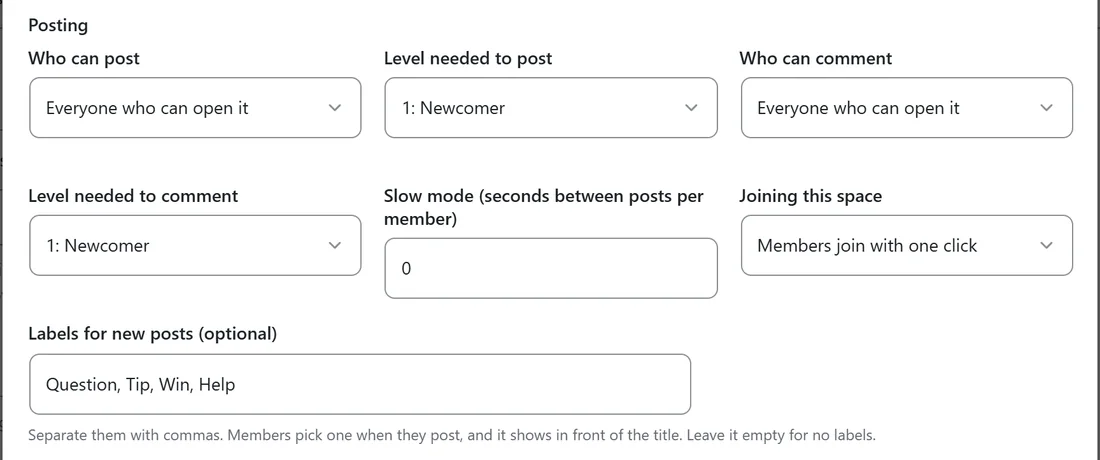
Labels for new posts (optional) sits at the end of Posting, for feed, forum and Q&A spaces. Type the labels separated by commas, for example Question, Tip, Win, Help. You can have up to 12 labels of up to 30 characters each, and repeats are dropped. When a member posts in the space, a Label menu in the post window lets them pick one (No label is the first choice), and the label shows in front of the post title. Leave the box empty for no labels.
Layout:
- Sort posts by: Latest activity, Newest first, Most liked or Unanswered first.
- Show posts as: List, Cards or Compact.
Click Save space when you are done.
A real example:
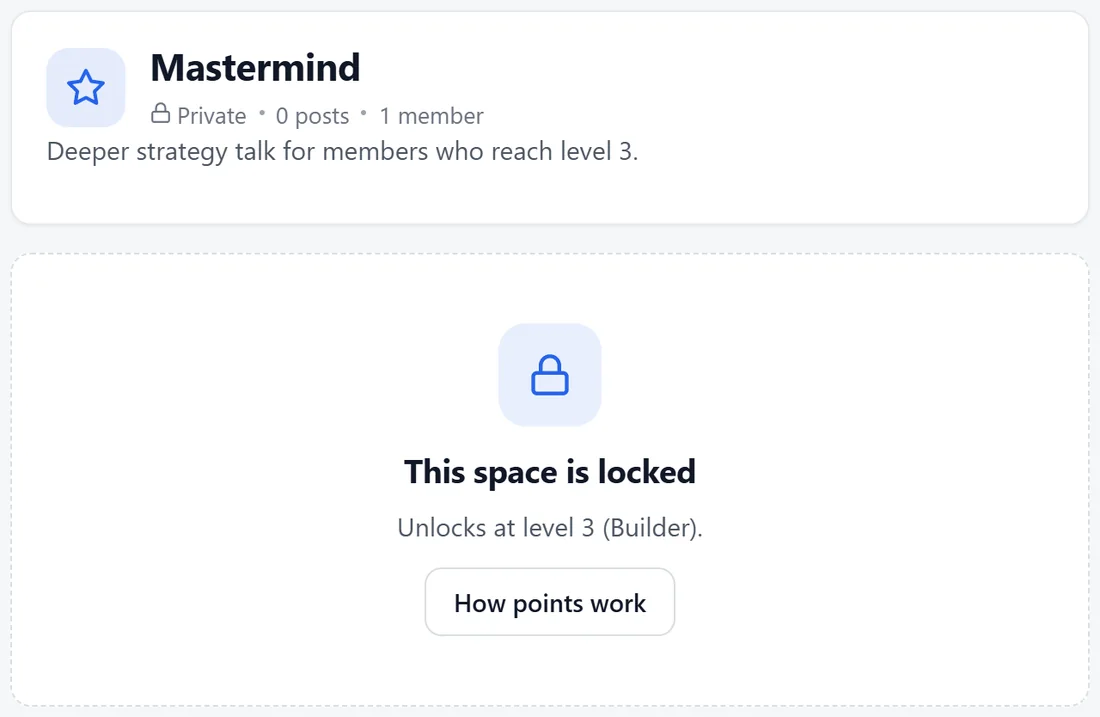
The Mastermind space in The Online Business Club is Private, and under Who can open it Alex picked Only some members with Level 3: Builder. Members below level 3 see the space in the sidebar with a lock and the words Unlocks at level 3 (Builder). Alex could also tick the Members plan, so paying members get in at any level.
Tips:
- For an announcements space, set Who can post to Only admins and moderators and leave comments on.
- Public spaces help people find you on Google. Keep paid or personal spaces Private or Secret; they are never listed in the sitemap.
- Turn on slow mode for a busy wins thread so one person cannot fill the feed.
- Labels make a busy forum easy to scan. Keep them short, such as Question, Tip and Help.