Spaces are the rooms of your community. Each one has a type that decides how it works, and spaces sit in groups in the members' sidebar. You can have as many as you like.
Where to find it:
Open AiX Community, then Community, then Spaces. The board at the top lists every group and space in sidebar order.
The space types:
- Feed: Skool-style posts with likes and comments. Good for discussion, wins and introductions.
- Forum: topics and replies with pinned, locked and solved topics. Good for support and long discussions.
- Q&A: questions with votes and a best answer.
- Chat: a live chat room with threads.
- Course: a classroom course list as its own space.
- Events: a calendar as its own space.
- Page: a fixed page such as Start here or your rules.
- Link: a sidebar link to anywhere, such as your shop or a resource.
Reading the board:
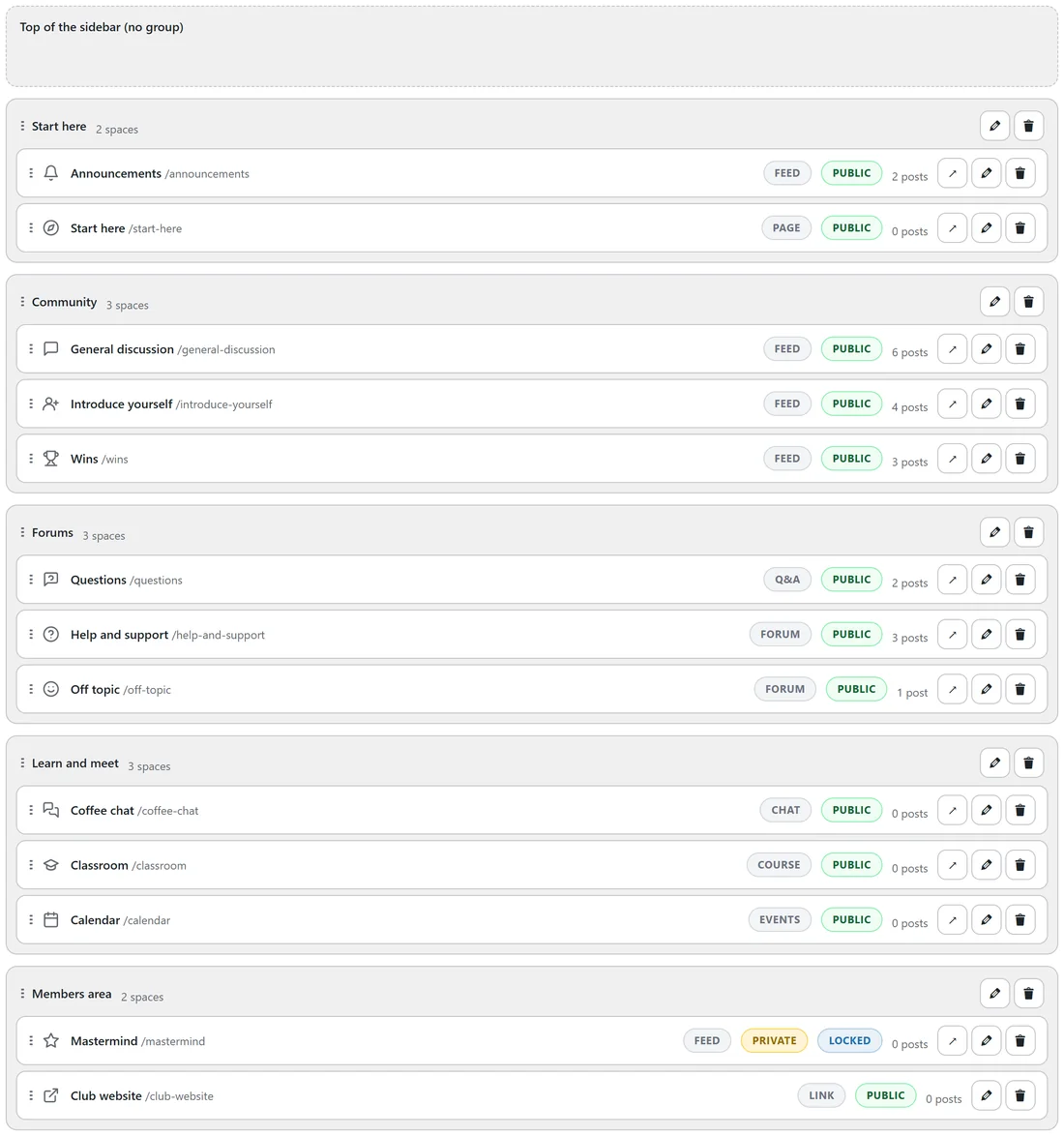
Each row shows the space icon, its name and its address (for example /general-discussion), then badges for the type and who can see it (Public, Private or Secret), Locked when only some members can open it, and the number of posts. The arrow opens the space in the app, the pencil edits it and the bin deletes it.
Add a space:
- Click + Add a space.
- Type a Name and pick a Type.
- Pick a Group, an Icon and a colour.
- Choose Who can see it and Who can open it. See Space Settings: Who Can See, Open, Post And Comment.
- Click Save space. It appears in the sidebar straight away.
Add a group:
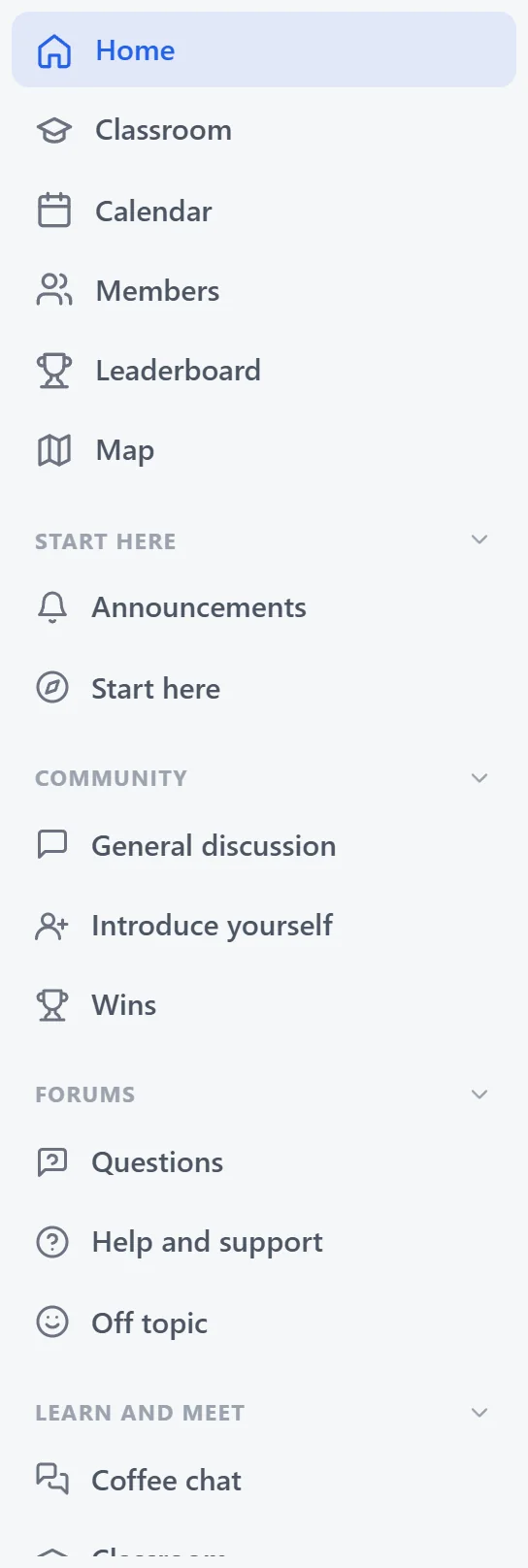
Click + Add a group and type its name, for example Learn and meet. Groups are the small headings in the sidebar. Members can fold a group closed. Spaces with no group sit at the top of the sidebar.
Change the order:
Drag a space by its handle to move it up or down or into another group. Drag a group by its handle to move the whole group. The order saves on its own.
Rename or delete:
Use the pencil on a group or space row to rename it. The bin deletes it. Deleting a space removes it from the community, so move posts you want to keep first with Move to another space on each post.
A real example:
The Online Business Club has five groups: Start here (Announcements and a Start here page), Community (General discussion, Introduce yourself, Wins), Forums (Questions, Help and support, Off topic), Learn and meet (Coffee chat, Classroom, Calendar) and Members area (a Mastermind space that opens at level 3 and a Club website link).
Tips:
- Keep the first group short. New members should see Start here and Announcements first.
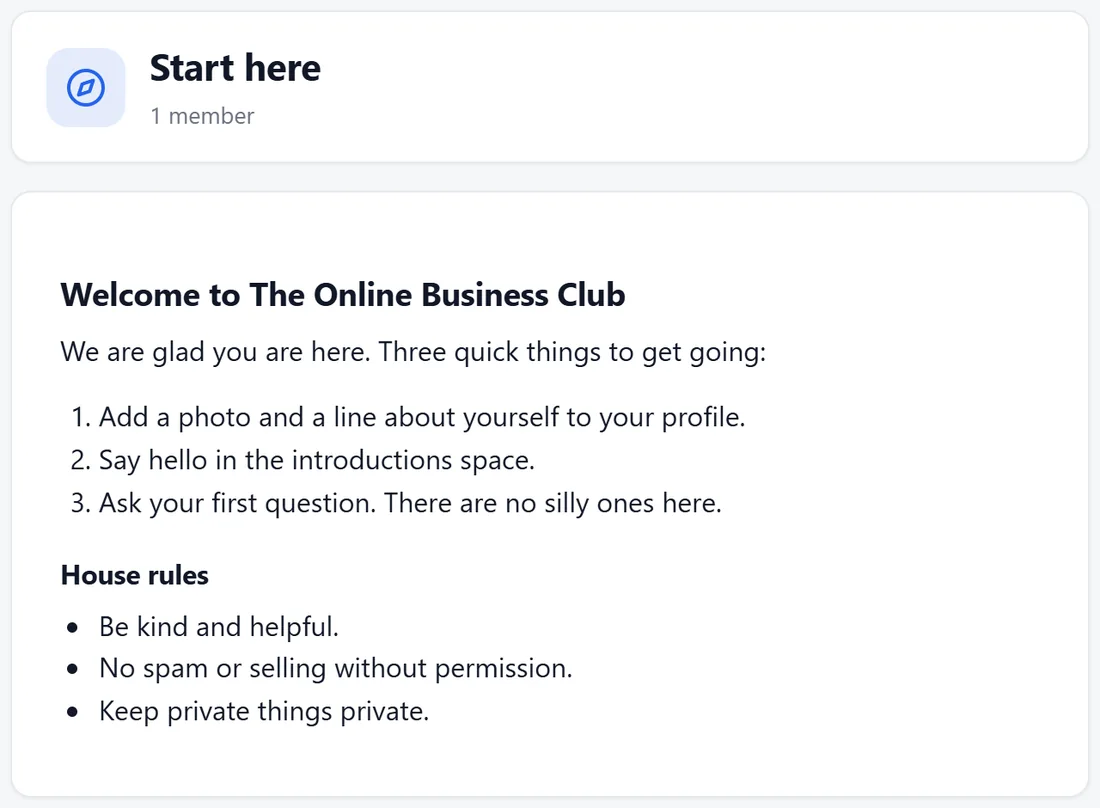
- A Page space is a good home for your rules. Owners edit its text right in the app with Edit page.
- Members can follow a space to hear about new posts in it. See Notifications, Email Choices And The Member's Own Settings.