Profiles help members get to know each other, and the directory and map help them find people near them or like them.
Profiles:
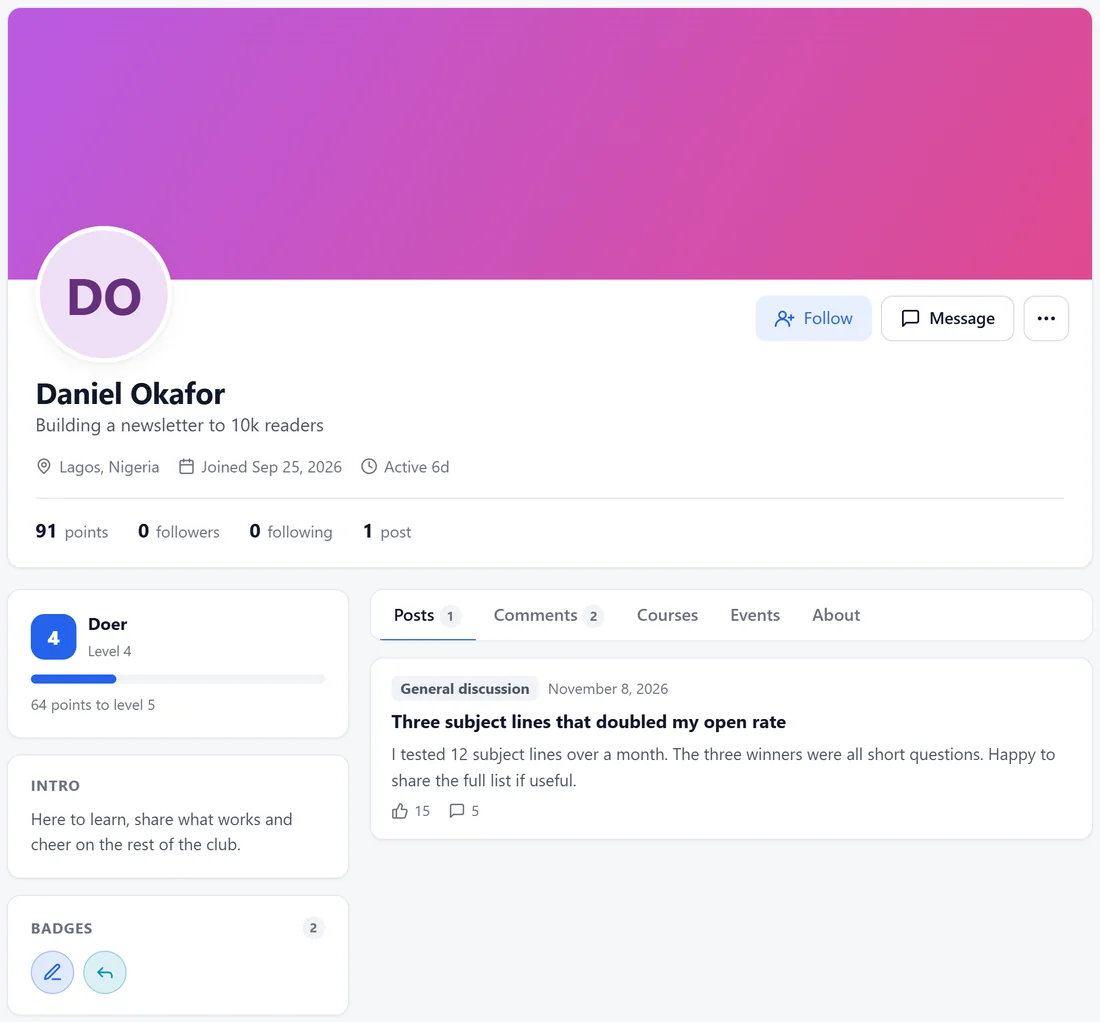
Click any name or picture in the app to open a profile, or go to yoursite.com/community/u/their-name/.
- A cover image, photo, name, headline, location, join date and when they were last active.
- Their points, followers, following and posts.
- Their level with a bar showing how far to the next one.
- Intro: their bio.
- Badges they have earned.
- Tabs for Posts, Comments, Courses, Events and About.
- Follow and Message buttons, and a More menu with Block and Report.
Your team also sees Staff tools with join answers and staff notes.
Editing your own profile:
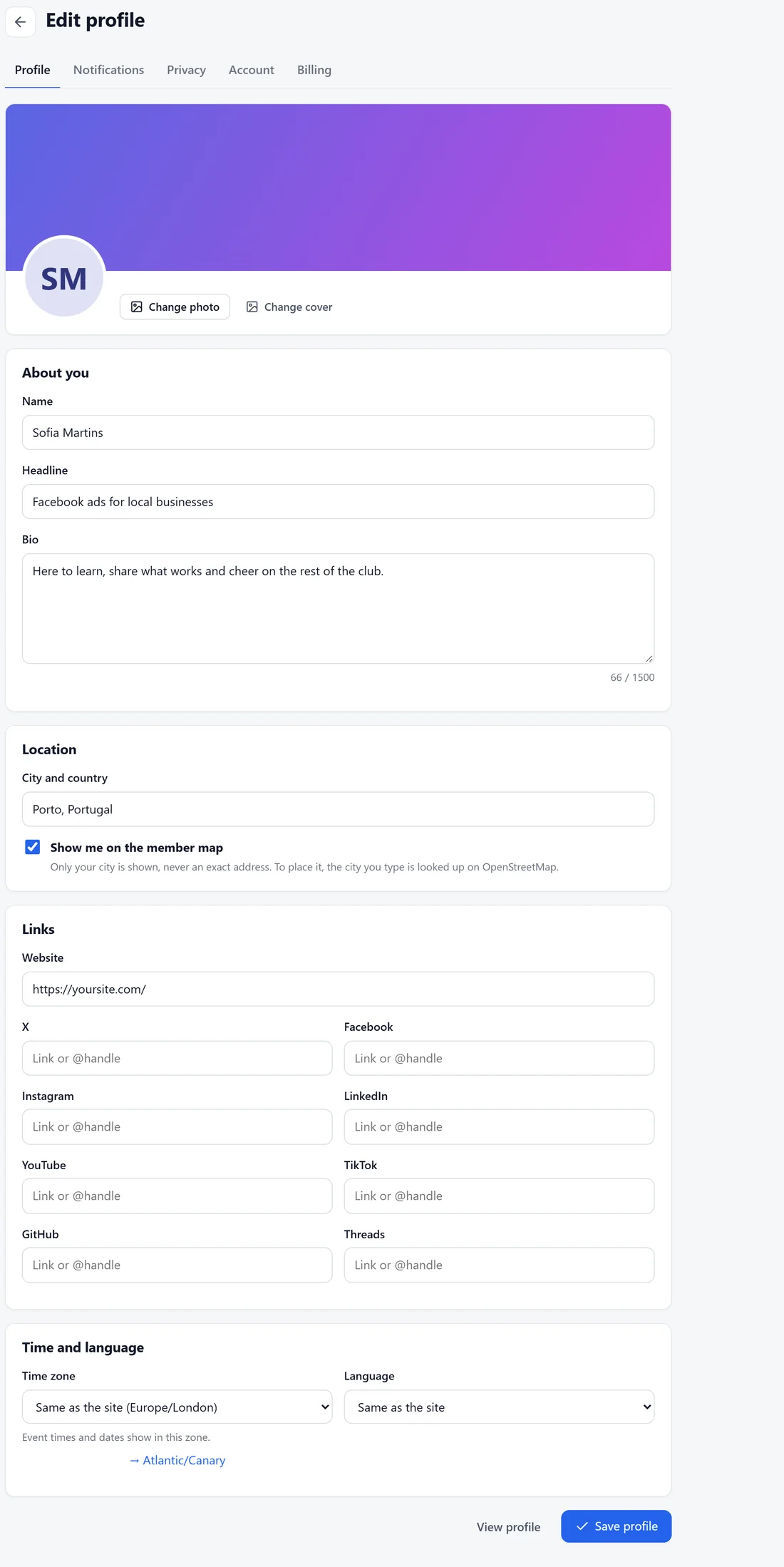
Members click their picture, then Account settings, then Profile, or click Edit profile on their own card.
- Change photo and Change cover.
- About you: Name, Headline and Bio.
- Location: City and country, and Show me on the member map. Only the city is shown, never an exact address.
- Links: Website and social profiles such as X, Facebook, Instagram, LinkedIn, YouTube, TikTok, GitHub and Threads.
- Any profile fields you add.
Click Save.
The member directory:
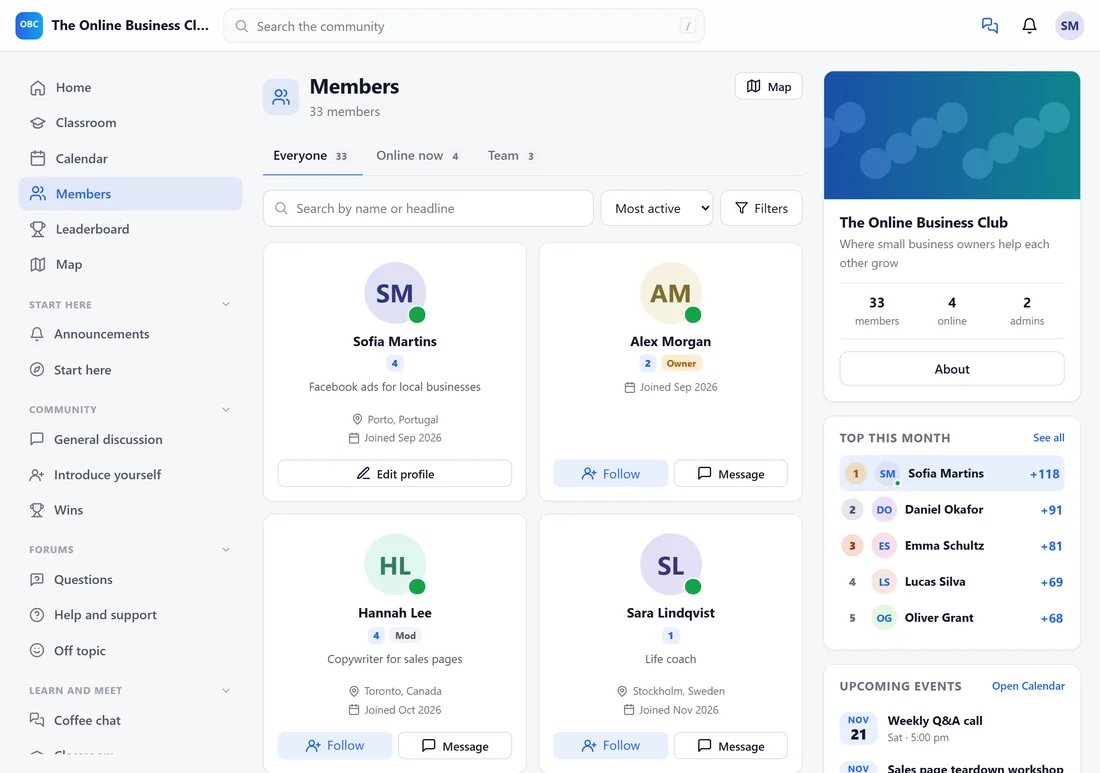
Click Members in the sidebar.
- Tabs: Everyone, Online now and Team.
- Search by name or headline, and sort by Most active, Newest, Most points or Name A to Z.
- Filters narrow by level, role, location and join date.
- Each card shows the photo, level, role, headline, location and join date, with Follow and Message.
The Map button at the top opens the map.
The member map:
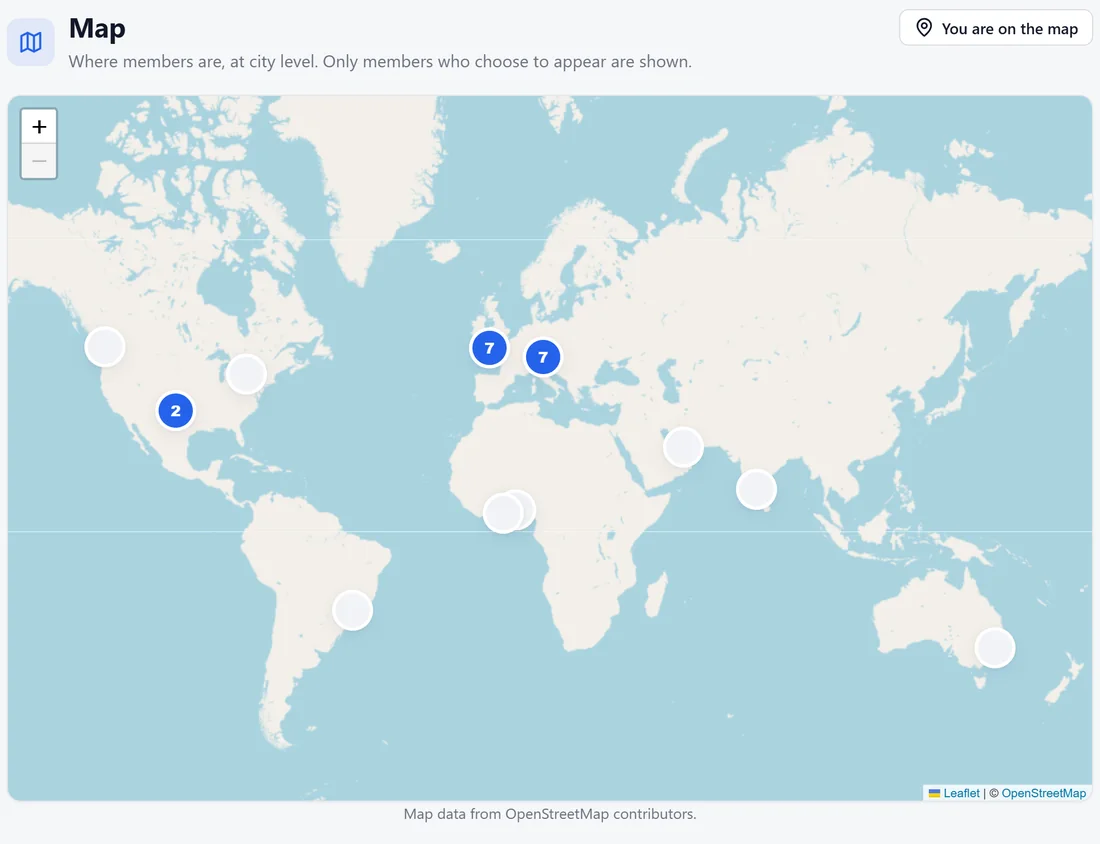
Click Map in the sidebar. It shows where members are, at city level, using OpenStreetMap. Only members who choose to appear are shown. Members click Add me to the map to set their city. The map can be switched off under Settings, Features.
Privacy:
Under Account settings, Privacy and data, each member chooses who sees their profile, their location and their email, manages blocked members, downloads their data and can delete their account data.
Profile fields:
Your team can add extra profile fields (text, choices, date or link) from the members directory in the app, with Show on profile for public ones.
A real example:
Daniel Okafor's profile shows Building a newsletter to 10k readers, Lagos, Nigeria, level 4 with 64 points to level 5, and his post about three subject lines. Sofia followed him and sent a message asking for his full list.
Tips:
- A photo and a short bio are the first getting started step. Remind people in your welcome message.
- The map works best for in-person meet-ups. Alex used it to plan the London meet-up.