Below the Spaces board sits the form for the community itself. It controls the name and look of the community card, how new people get in, and the first message they receive.
Where to find it:
Open Community, then Spaces, and scroll to Your community.
Name and look:
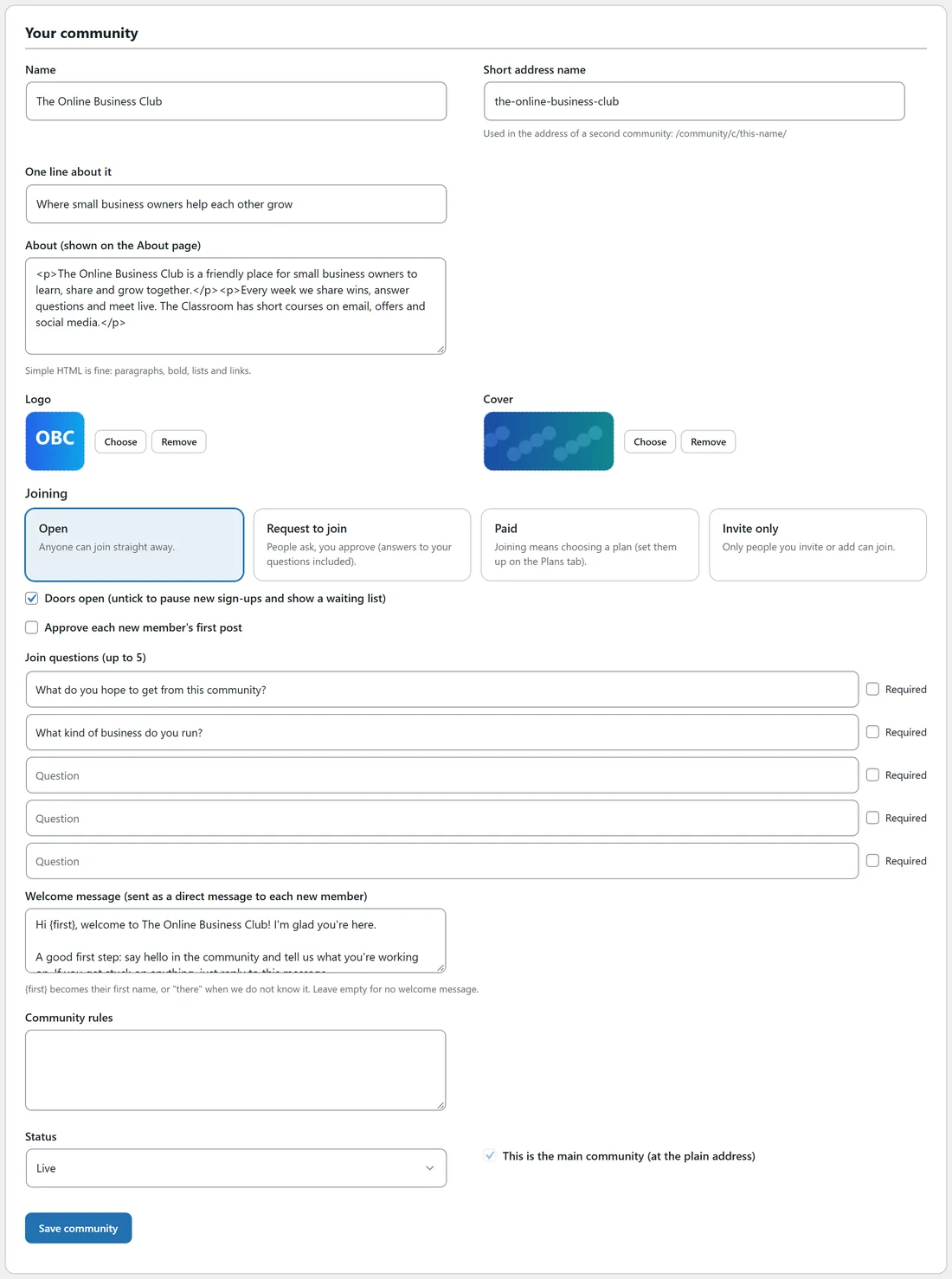
- Name: shown at the top of the app and in every email.
- Short address name: used only in the address of a second community, such as /community/c/this-name/.
- One line about it: the tagline on the community card and About page.
- About (shown on the About page): simple HTML is fine, such as paragraphs, bold, lists and links.
- Logo and Cover: click Choose to pick an image, Remove to clear it.
Joining:
- Open: anyone can join straight away.
- Request to join: people ask and you approve, with their answers to your questions included.
- Paid: joining means choosing a plan. Set the plans up under Plans and payments.
- Invite only: only people you invite or add can join.
- Doors open: untick it to pause new sign-ups and show a waiting list instead.
- Approve each new member's first post: their very first post waits for a moderator.
Join questions:
Add up to five. Tick Required on any a person must answer. You see the answers when you approve someone and on their member card.
Welcome message:
This is sent as a direct message from you to each new member. {first} becomes their first name, or there when we do not know it, so the greeting always reads right. Leave the box empty for no welcome message. The wizard fills in a friendly starting message you can edit.
Community rules:
Your house rules. New members can open them from the join page and from their getting started steps.
Status and main community:
- Status: Live, or Paused (hidden).
- This is the main community (at the plain address).
Click Save community.
Another community:
Most sites run one community. Click Create it under Another community to add a separate group, for example a paid mastermind, with its own members, spaces and plans. The switcher under the admin menu picks which community you are working on.
A real example:
Alex uses Open joining with two questions: What do you hope to get from this community? and What kind of business do you run? The welcome message starts Hi {first}, welcome to The Online Business Club! and suggests saying hello in Introduce yourself. A new member called Sara sees Hi Sara; someone who joined without a first name sees Hi there.
Tips:
- Request to join is a good filter for a free community that attracts spam. Approve people from the Members tab or from the yellow line on the Dashboard.
- Keep the welcome message short and end it with one clear first step.
- See Joining, Logging In And The Getting Started Steps for what new members see.