ResultsAiX Community installs like any WordPress plugin. Once it is active, it asks for your licence key before any screen opens. The key turns on every part of the plugin and keeps it updated.
What you need:
- The plugin zip file from your account portal.
- Your licence key. It starts with AICOMMUNITY and was emailed to you after your purchase. You can also find it in your portal.
- WordPress 5.6 or newer and PHP 7.4 or newer.
Install the plugin:
- In WordPress, open Plugins, then Add New Plugin, then Upload Plugin.
- Choose the zip file and click Install Now.
- Click Activate Plugin.
- A new menu item called AiX Community appears in the WordPress menu.
Activate your licence:
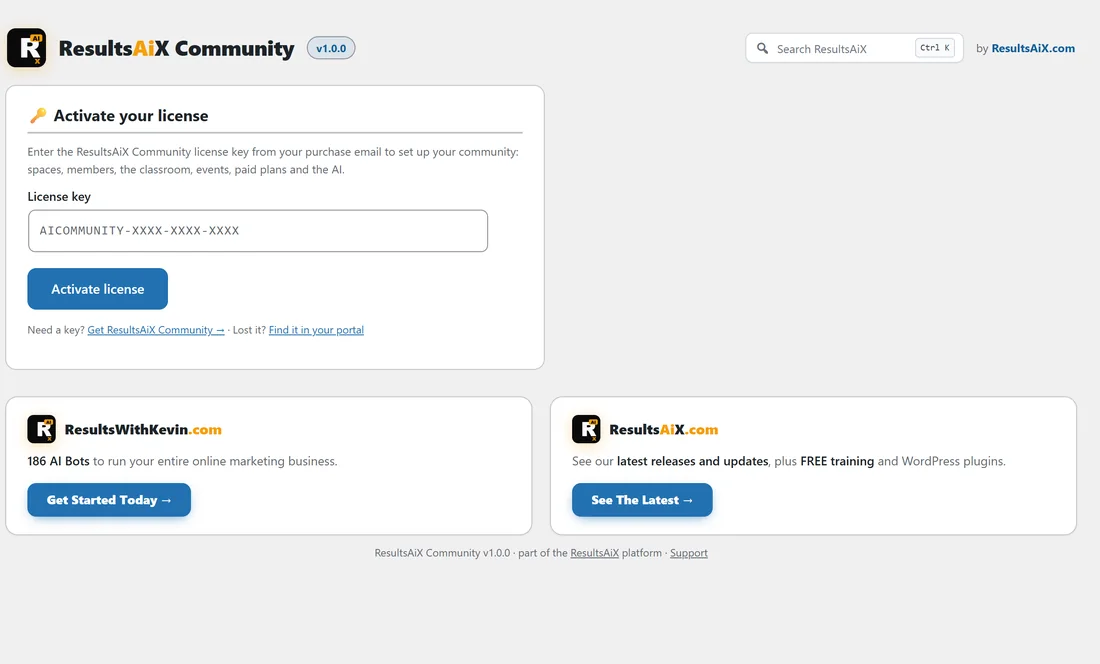
- Click AiX Community. The first screen is Activate your license.
- Paste your key into the License key box. It looks like AICOMMUNITY-XXXX-XXXX-XXXX.
- Click Activate license. The page reloads when the key is accepted.
- The setup wizard opens next. See The Setup Wizard.
Where your licence lives afterwards:
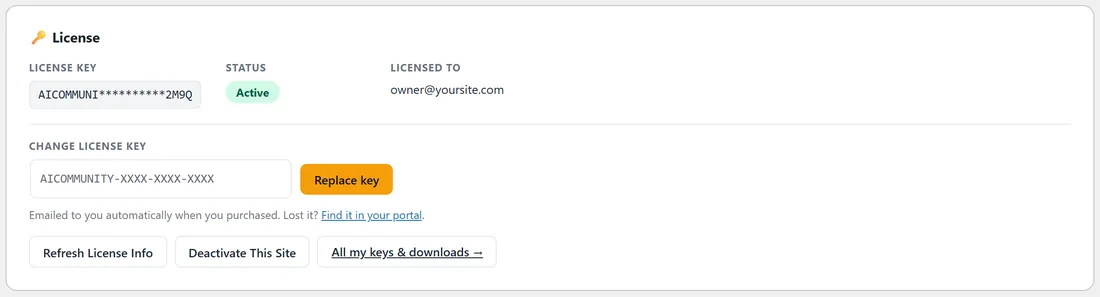
Open AiX Community, then Setup, then Settings. The License panel sits at the top of the page.
- License key shows the key with the middle hidden.
- Status shows Active when everything is in order.
- Licensed to shows the email address the key belongs to.
- Replace key lets you paste a different key, for example if you move to another plan.
- Refresh License Info asks the licence server for the latest details straight away. The plugin also checks once a day on its own.
- Deactivate This Site frees this site's place on your key, so you can use the key on another site.
- All my keys and downloads opens your account portal.
How many sites:
Each key can be active on a set number of sites. The panel shows how many are in use. Deactivate This Site on an old site frees a place for a new one.
A real example:
Alex built The Online Business Club on a staging copy first. When the community was ready, Alex clicked Deactivate This Site on the staging copy, then activated the same key on yoursite.com.
If you see a message about the key:
- If the key is not accepted, check there are no spaces before or after it and that it starts with AICOMMUNITY.
- If you are moving the site to a new address, click Deactivate This Site on the old address first, then activate on the new one.
- If the status does not look right, click Refresh License Info, then open Diagnostics and use Copy Report for Support when you contact us.
Tips:
- Keep your data safe: deactivating or deleting the plugin keeps your community, members and posts, unless you tick the delete option under Settings, When the plugin is deleted.
- Next, run the wizard. See The Setup Wizard and Your First Community In Ten Minutes.