The home feed is where most members spend their time. It shows posts from every space they can open, newest activity first, with likes, comments and points on every post.
Where to find it:
Open your community at yoursite.com/community/ and click Home in the sidebar.
Reading the feed:
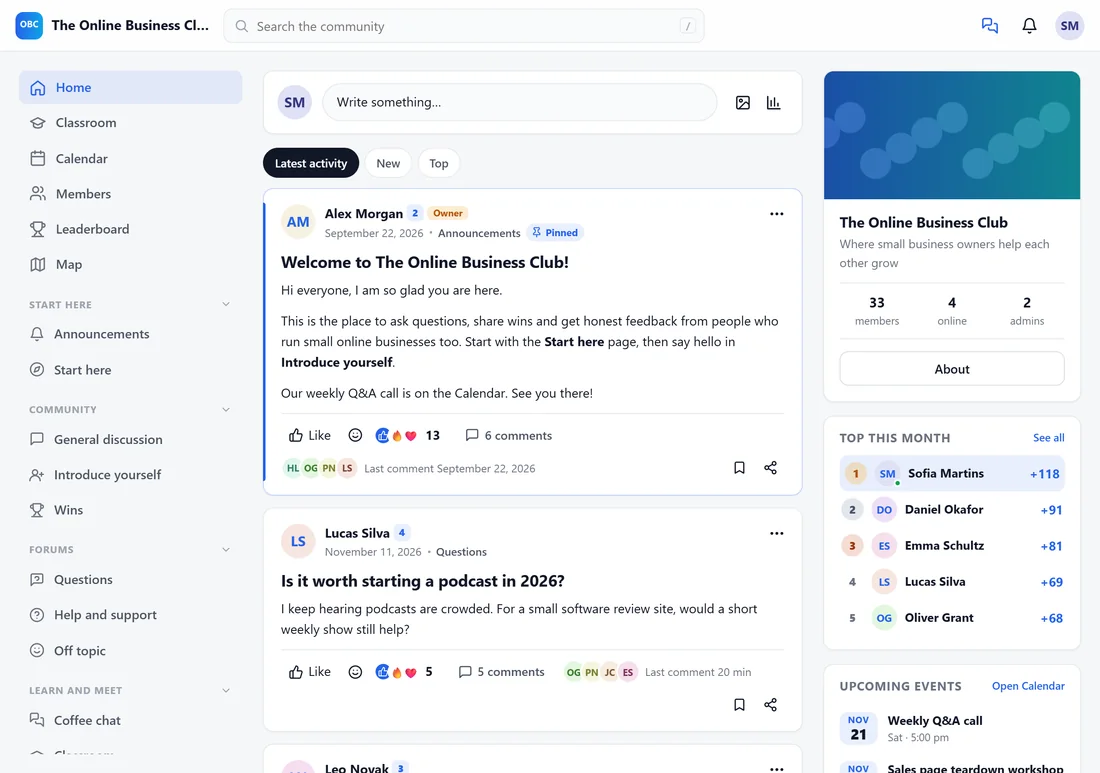
- Pinned posts sit at the top with a Pinned label.
- Each post shows the author with their level badge, the time and the space it was posted in, then the title and text.
- Under each post: Like, the emoji button, the reactions so far, the comment count, the faces of the people who commented, the time of the last comment, Save and Share.
- Three tabs above the feed: Latest activity, New and Top.
- Posts with fresh activity since a member's last visit show a New tag.
Write a post:
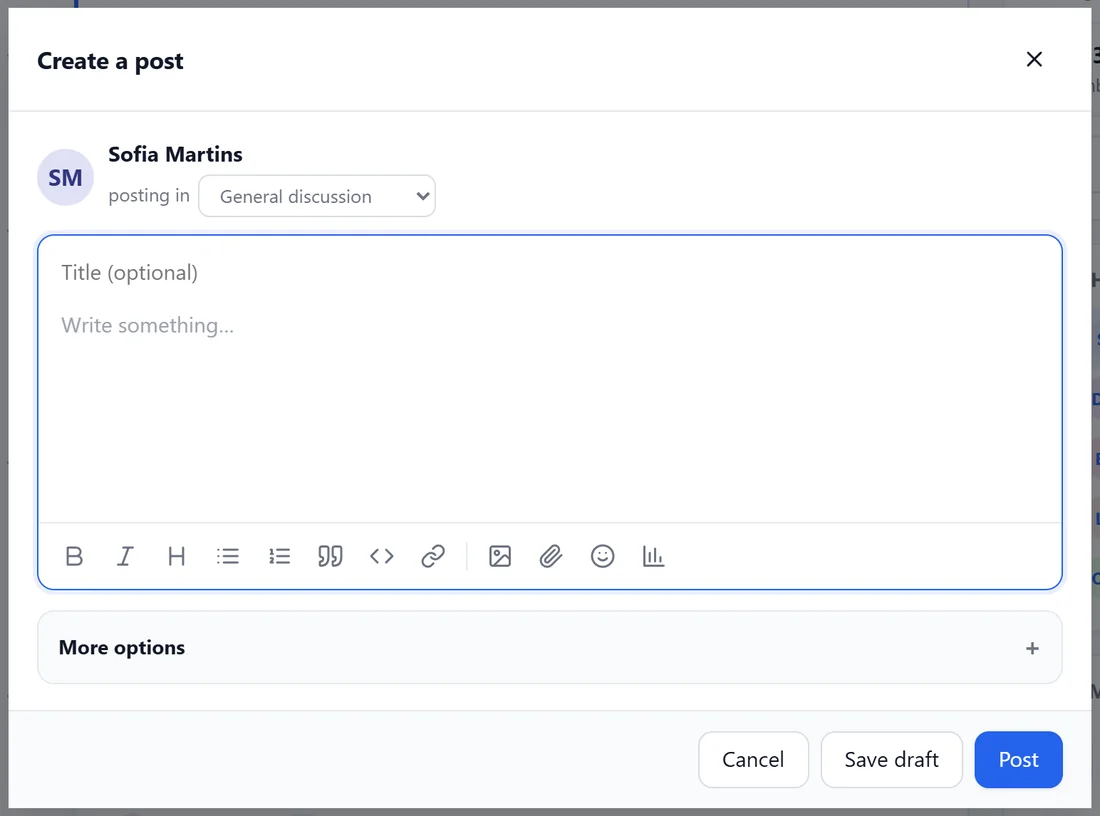
- Click Write something at the top of the feed or of any feed, forum or Q&A space.
- The Create a post window opens. Under posting in, pick the space.
- Add a Title (optional in feed spaces, needed in forum and Q&A spaces).
- Write your text. The toolbar has bold, italic, heading, bullet and numbered lists, quote, code, link, image, file, emoji and poll buttons.
- Click Post. Or click Save draft to finish it later.
What you can put in a post:
- Formatted text, links and @mentions of members, who then get a notification.
- #hashtags, which become tags members can click to see related posts.
- Images, which are stored in your media library, and file attachments (the size and file types are set under Settings, Uploads).
- Video and link embeds: paste a YouTube, Vimeo, Loom, Wistia or Bunny link.
- A poll. See Post Options: Polls, Tags, Scheduling, Anonymous And More.
- GIFs, when you add a Giphy key under Settings.
Similar topics while typing:
In forum and Q&A spaces, the app suggests similar existing topics as the member types a title, so questions that already have answers get found.
Editing and history:
Authors can edit their own posts from the three-dot menu. The app keeps an edit history, which your team can open from the same menu.
A real example:
Sofia opened Wins, clicked Write something, gave her post the title Hit 1,000 subscribers this morning! and wrote three lines about what worked. Within a day it had fourteen reactions and eight comments, and every like on it gave her a point towards her next level.
Tips:
- Ask a question at the end of a post. It gets more comments.
- Staff can pin a post to the top of its space or of the home feed from the three-dot menu.
- Members choose which posts they hear about. See Notifications, Email Choices And The Member's Own Settings.