Search helps members find answers that already exist, which keeps the same questions from being asked again and again.
Where to find it:
The search box sits in the top bar of every page of the app. On a phone, tap the magnifying glass. Press the slash key to jump into it from the keyboard.
Searching:
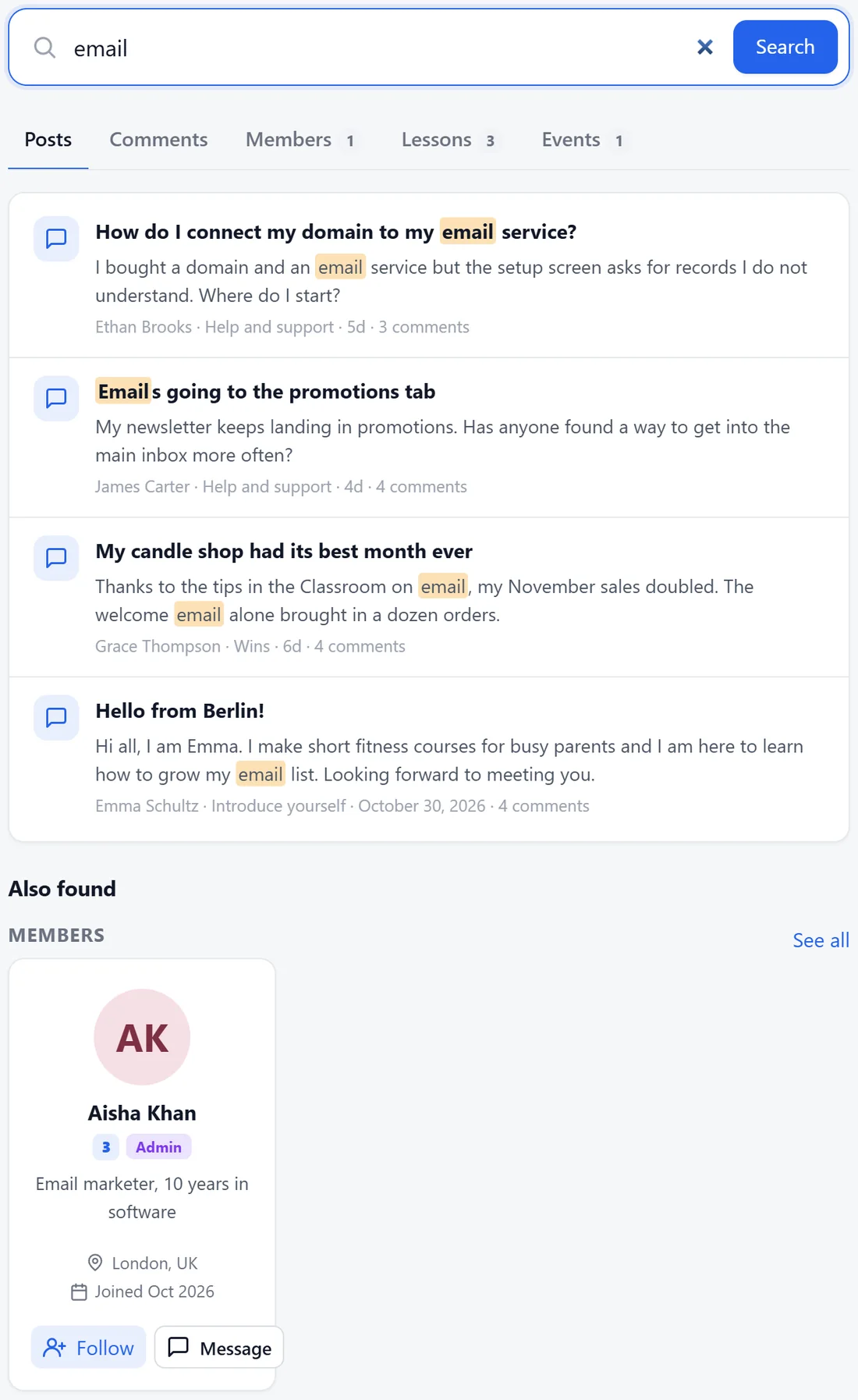
- Type a word or a question and press Enter, or click Search.
- Results are split into tabs with counts: Posts, Comments, Members, Lessons and Events.
- Your words are highlighted in each result, with the space, author, age and number of comments.
- Also found shows matches from the other tabs, such as members whose headline matches.
What members can find:
Only what they are allowed to open. Posts in spaces they cannot open, private topics and locked lessons stay out of their results.
Ask the community:
When the AI is connected and Ask the community is switched on, a full question typed into search gets an AI answer at the top, written from your community's posts and lessons, with links to the sources. If the AI cannot find a clear answer, it says so rather than guessing, and the normal results are still below. See AI Moderation, Catch Me Up, Translate And Writing Help.
Search engines:
Public spaces and posts can be listed in your sitemap so Google can find them. That is switched on under Settings, Search engines and API. Private and secret spaces are never listed or indexed.
A real example:
Before posting, Ethan searched for email and found James's earlier topic Emails going to the promotions tab, with an accepted answer. He read it instead of asking again.
Tips:
- Mark best answers and solved topics. They rise in search and teach the AI.
- If your database supports full-text search, results are faster on very large communities. Diagnostics shows which kind of search your site uses.